
Recording and sharing
Add voice comments in Google Docs and Classroom
Add voice comments to Google Docs and audio feedback to Google Classroom with Talk & Comment, then post the link for your student.
Last updated October 16, 2026
Use a recorded voice note for feedback on a passage or a student's submission. You record with Talk & Comment, then paste and post the link in Google.
Before you record
Complete the extension setup if you have not recorded before. The steps below use the floating Talk & Comment microphone on the page, not the extension toolbar popup.
Add voice comments in Google Docs
- Open the student's document. Make sure you have permission to comment on it.
- Record your feedback. Click the floating Talk & Comment microphone. Allow microphone access if asked, then speak when REC appears.
-
Save and copy the link. Click Done, wait for the recording to upload, then click Copy link.
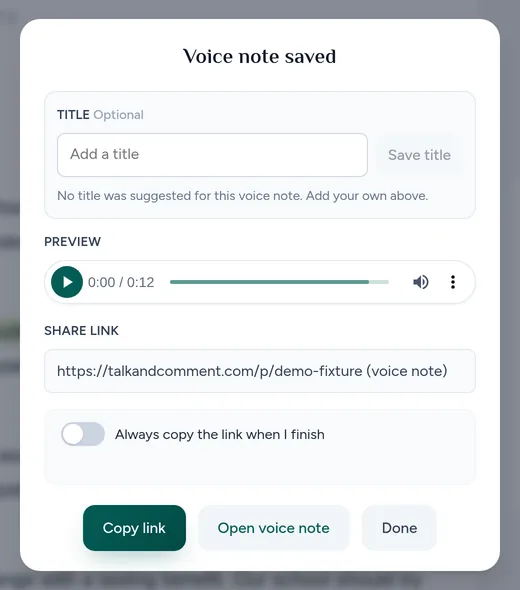
Copy the saved recording's link before returning to the comment. (Example page.) Select the passage and add a comment. Select or reselect the text you want to discuss, then use Google's Add comment control.
-
Paste the link and post it. Add a short label such as “Listen to feedback on your introduction,” paste the link, and click Comment. Talk & Comment does not post the Google comment for you.
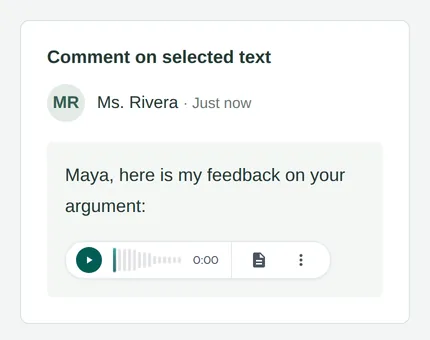
An eligible posted link can become a small player for someone using the extension. (Example page.)
Add audio feedback in Google Classroom
- Open the assignment. In your class, go to Classwork, select the assignment, and click View assignment. Open the student's work.
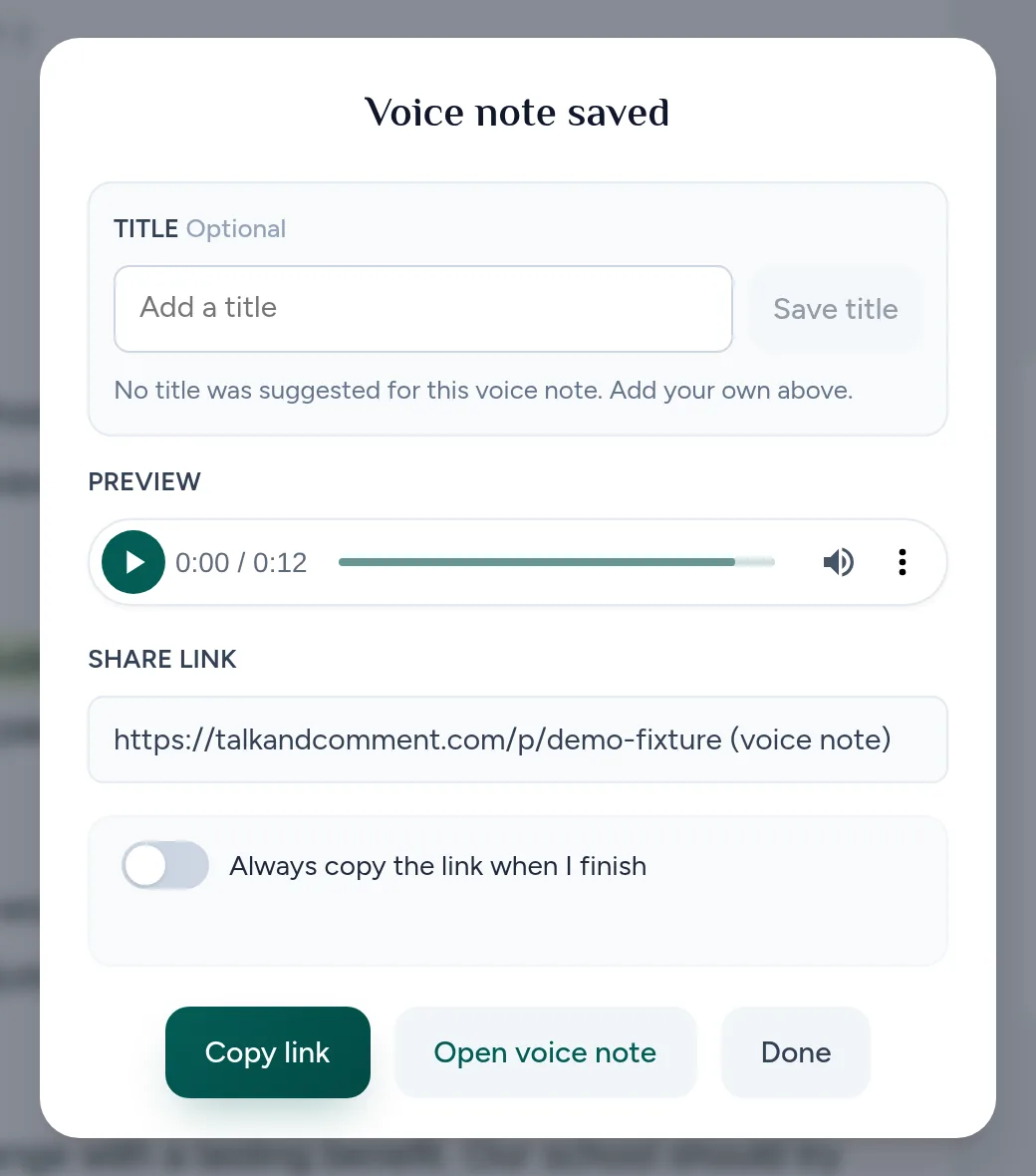
- Record and copy your feedback. Click the floating Talk & Comment microphone, speak when REC appears, then click Done. After upload, click Copy link.
-
Paste into the private comment. Under Private comments, use Add private comment and paste the link.
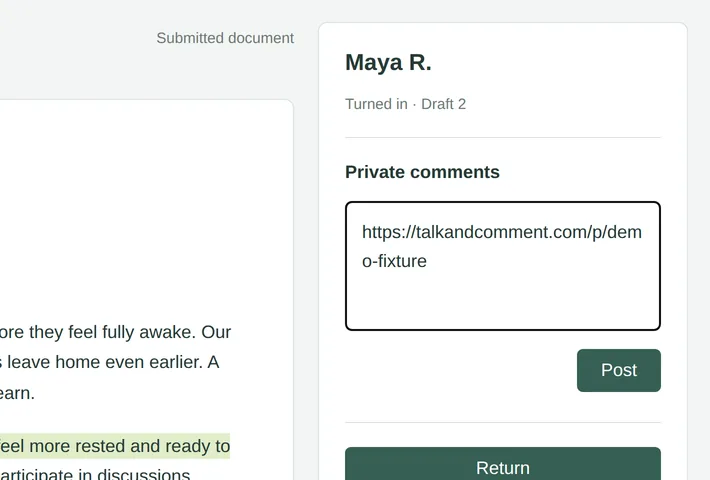
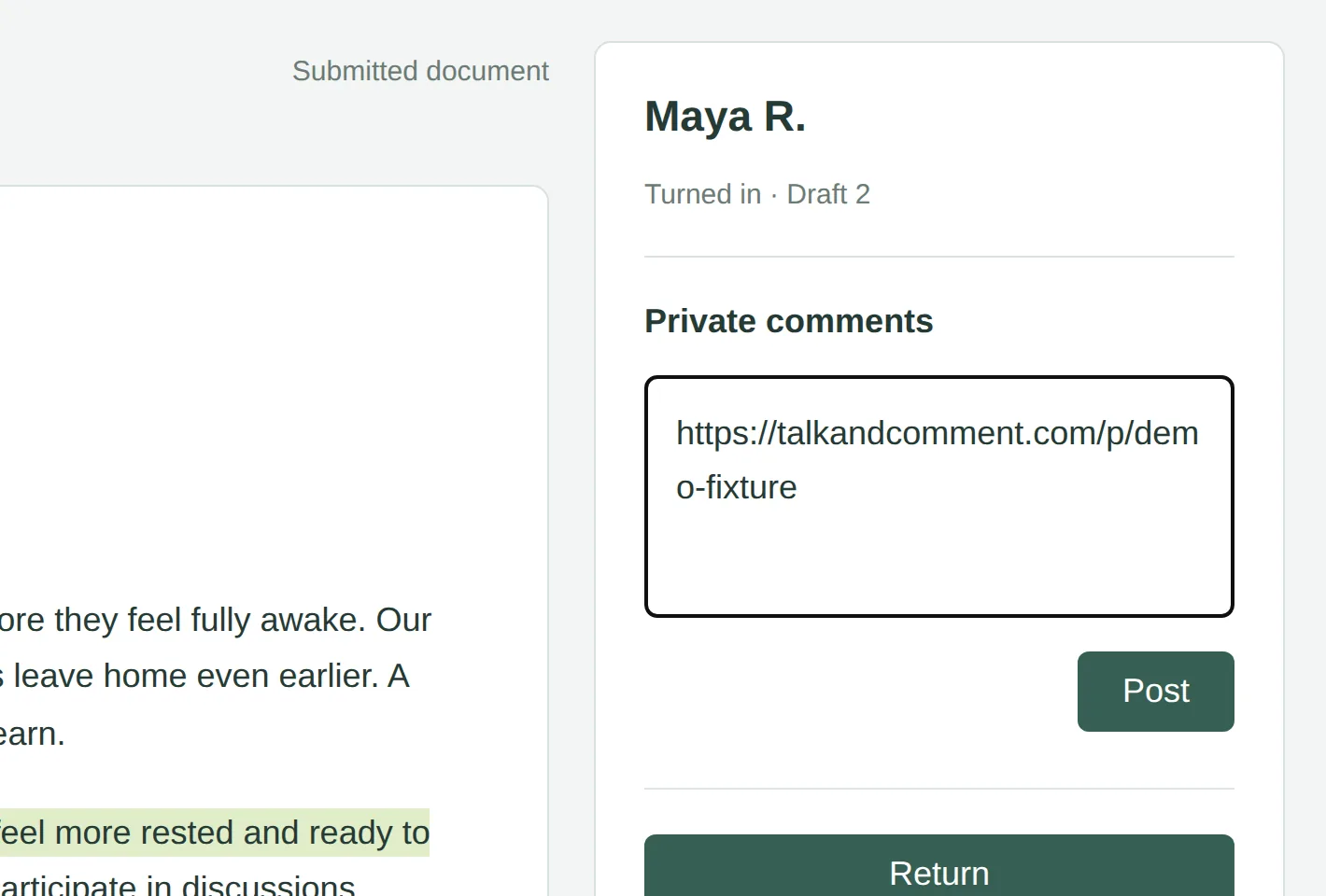
The pasted link is still in the comment editor. Post it before returning the work. (Example page.) -
Click Post. Check that your comment appears in the thread. Use Return separately when you are ready to return the student's work.
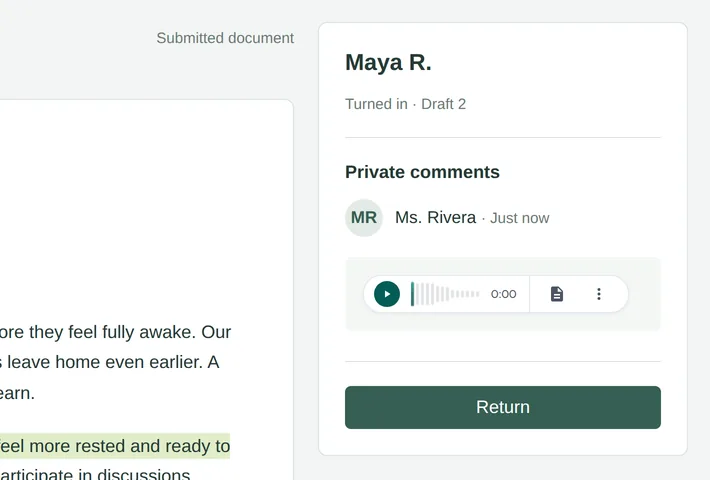
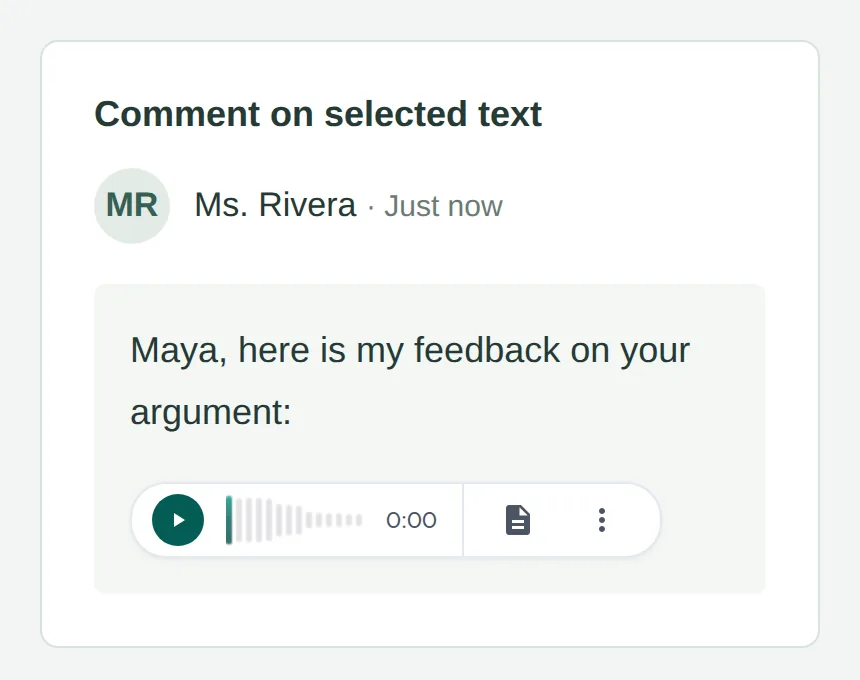
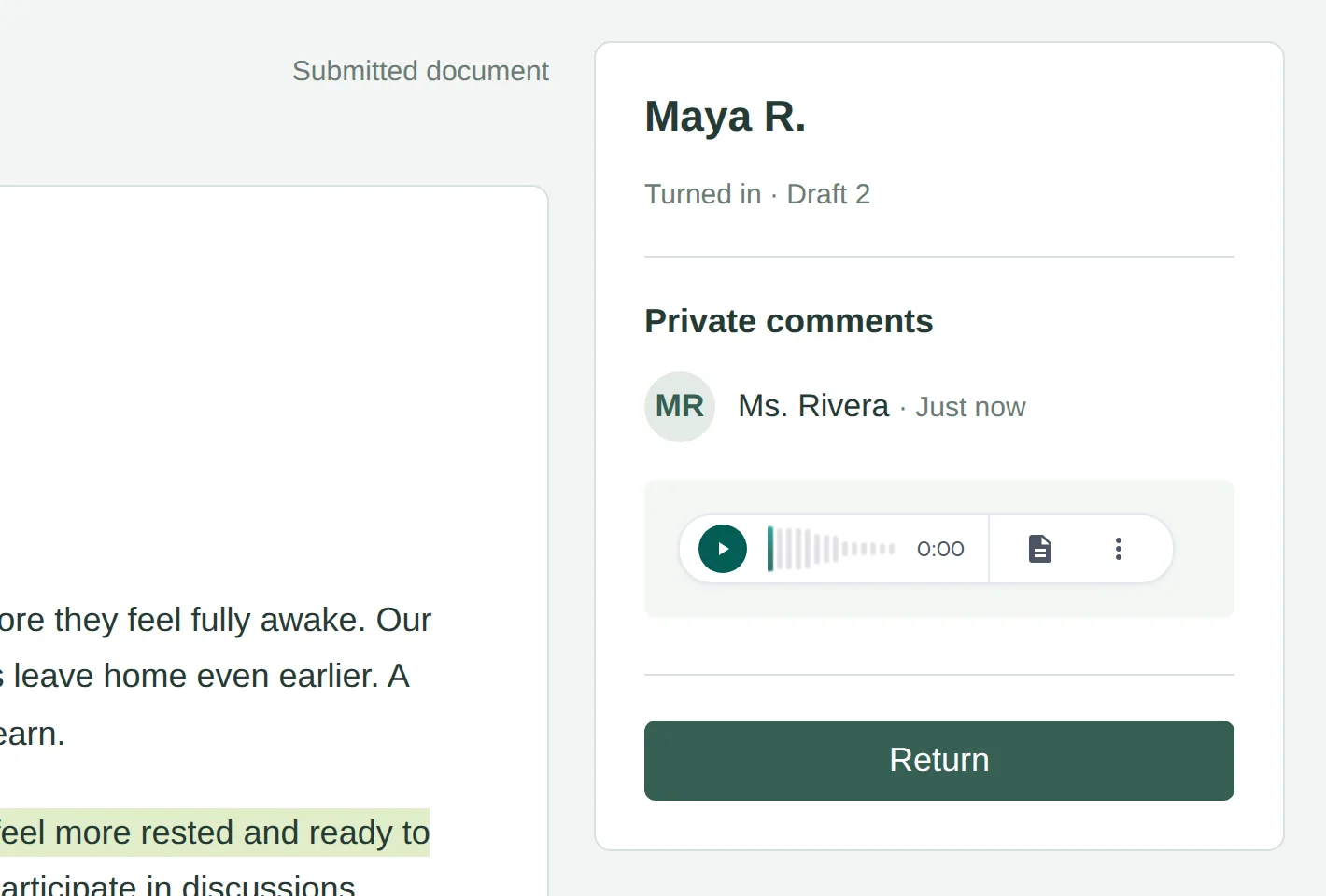
After Post, the extension turned the link into a small player on this example page. Return is a separate step. (Example page.)
Check what the student can open
The student can open the link in a compatible browser and press play without installing the extension. Public voice note links do not require an account. If your organization restricts external sharing, the student must be signed in as a member of the sender's Talk & Comment team. See sharing and listening permissions.
The small inline player depends on the listener's extension, site access, and paste location. A link can stay plain text while you edit it. If the posted link does not become a player, use the inline player checklist or open the link directly.
Add voice comments in Google Slides
Use the Google Slides guide for posted comments, speaker notes, and checking the links in student copies.
Was this article helpful?
Still stuck? Email support and a real person will get back to you.