
Troubleshooting
Fix a Talk & Comment voice note that will not play
Check the recording's direct link, playback error, access restrictions, and network requests when a Talk & Comment voice note will not play.
Last updated October 16, 2026
Use this guide when the recording link opens but the audio will not play. If the link never becomes a player on another website, use the inline-player guide instead.
Retry, then open the recording directly
The player page can say This recording can’t be played right now. An inline player can say Couldn’t play this recording. Neither message identifies the cause on its own.
- Click Retry if it is shown. Try playback again after checking your connection.
-
Click Open recording in the inline player. If that link is not shown, copy the complete recording link into the browser address bar. Try it outside the LMS or embedded preview.
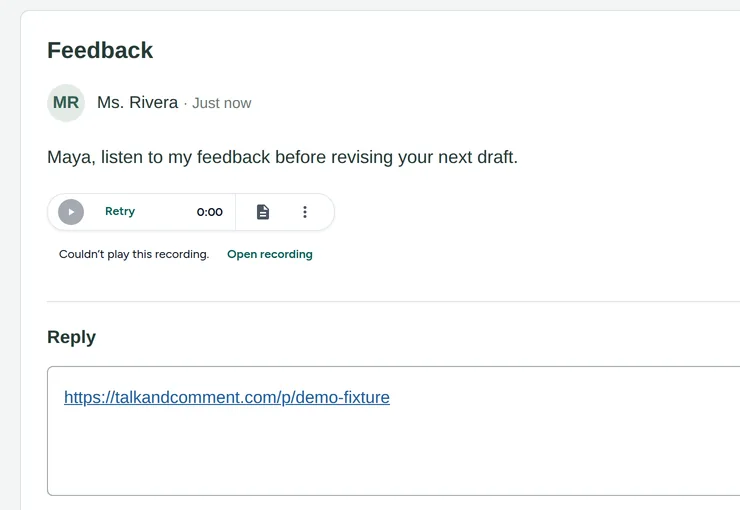
Use Retry for another playback attempt, or Open recording to try the dedicated player page. (Example page.) Check Chrome's sound permission. Use the site-information control beside the web address to open Site settings, then check whether sound is allowed for the recording page.
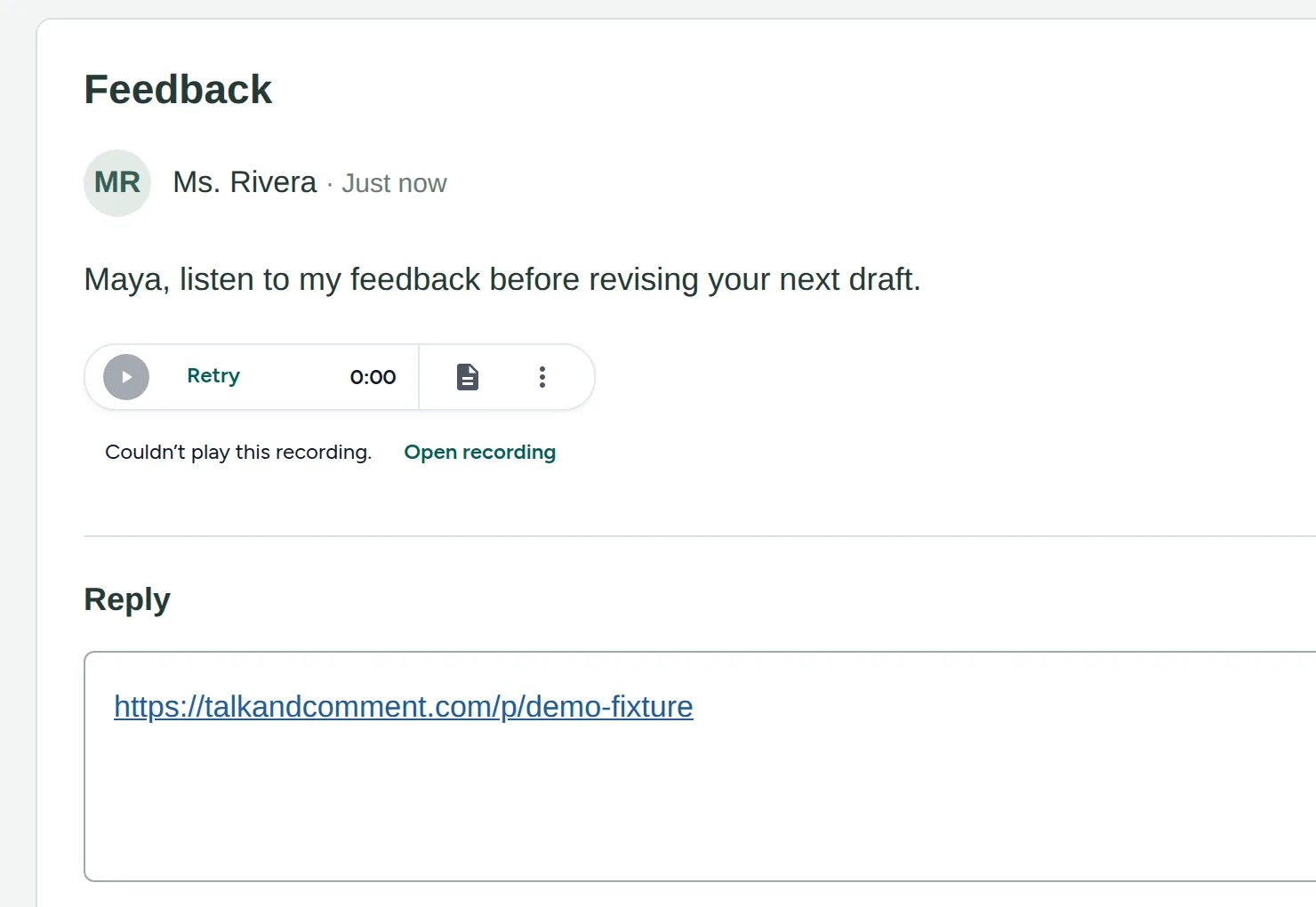
A valid public recording can play on its own page without installing the extension or signing in. A restricted organization note is different.
The page asks you to sign in
Sign in to open this voice note means the sender's organization restricts access. Click Sign in and use your school or work Google account that belongs to the sender's Talk & Comment team.
If you still cannot open it, ask the sender or their school administrator to check your access. Signing in with any Google account is not enough. Copying the same link again does not change organization permissions. See sharing and listening permissions.
The link opens the home page or the note is missing
Ask the sender to find the recording in their Library, play it there, and use Copy link to send the complete address again. This rules out a copying mistake; it does not generate a new recording or renew its access.
A deleted or missing recording cannot open its normal player page; the link may take you to the home page instead. Ask the sender to confirm whether they deleted it. Do not treat a missing note as proof of a microphone or cookie problem.
Check delivery with school IT
If the page opens but playback still fails, ask IT to inspect the page and audio requests. Include talkandcomment.com and the media host cdn2.talkandcomment.com, plus tac.im if that is the shared link's domain. Loading the website alone does not establish that its audio request succeeds.
Where school policy permits, compare the same link on another network using the same device and account. A difference is useful evidence, not proof that a school filter is the cause. Do not bypass school safeguards. The school IT setup guide has the wider domain and policy checklist.
If sign-in does not persist, or sign-in works directly but fails in a preview, use the conditional storage and cookie checks. Do not enable third-party cookies everywhere as a general playback fix.
When asking for help, send the exact message, browser and device type, school-managed status, and whether other recording links play. Share the affected link privately and remove student information from screenshots.
Was this article helpful?
Still stuck? Email support and a real person will get back to you.