
Troubleshooting
Fix microphone access in Chrome for Talk & Comment
Check a missing mic button, Chrome permissions, your selected microphone, device settings, and school restrictions before trying another recording.
Last updated October 16, 2026
Video transcript
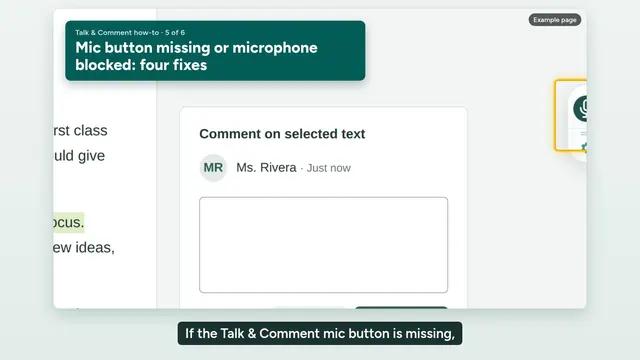
If the Talk & Comment mic button is missing, or it won't record, try these four fixes. 1. Refresh the page. Pages that were already open when you installed or updated the extension need a refresh. 2. If you closed the mic button with its little x, it stays hidden on every page. Click the Talk & Comment icon in your Chrome toolbar, and turn on Show Recording Button. 3. If you see Turn on microphone access, click Open permission page, and choose Allow when Chrome asks. If Chrome doesn't ask, open Chrome's microphone settings, make sure the right microphone is selected, and make sure Talk & Comment isn't blocked. 4. On a school Chromebook, your IT team may need to allow the extension and the microphone. Send them the School IT setup guide from our Help Center. Still stuck? Use Email support at the bottom of the Help Center. Tell us the page you were on, whether the device is managed by your school, and which step failed.
If your microphone is not working in Chrome, start with the symptom you see. A missing button, denied permission, and an unavailable microphone need different checks.
The mic button is missing
-
Check that the extension is on. Open
chrome://extensionsand find Talk & Comment. If you installed or updated it while the page was open, refresh that page. - Open the Talk & Comment toolbar popup. If its icon is hidden, open Chrome's Extensions menu and select Talk & Comment.
-
Turn on Show Recording Button. Closing the floating mic with its small x hides it on every page, not only the page you were using.
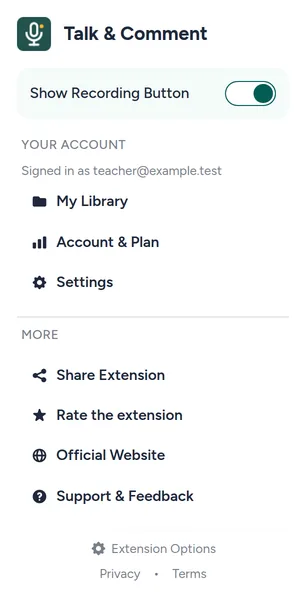
Turn on Show Recording Button to bring back the floating recorder. (Example account.)
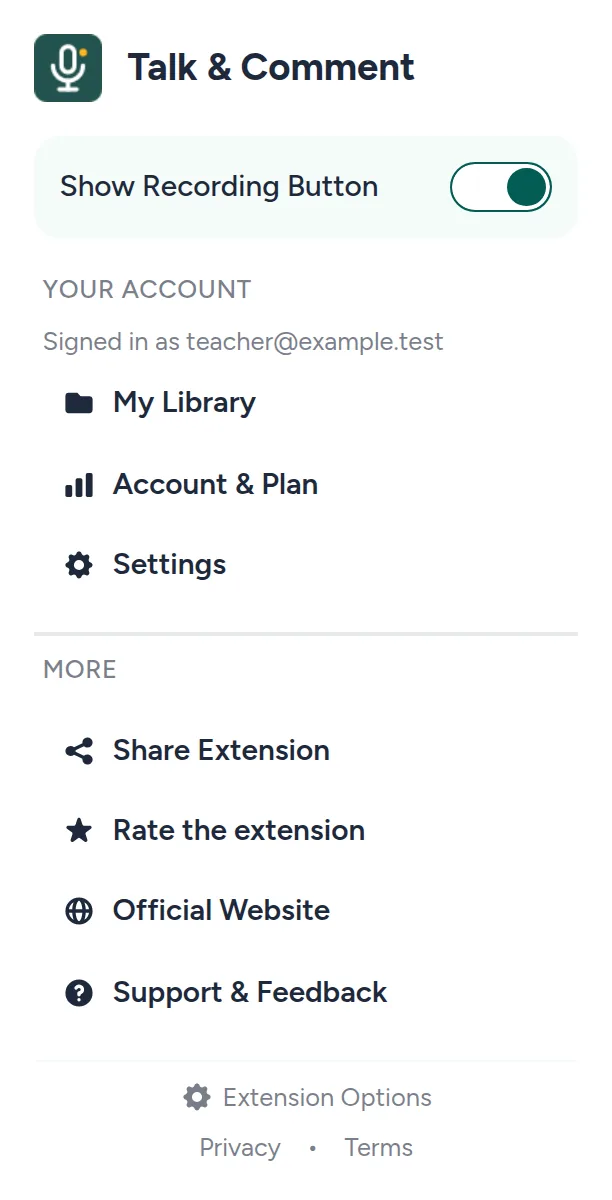
The extension asks for microphone access
-
Click Open permission page. The extension shows this button under Turn on microphone access.
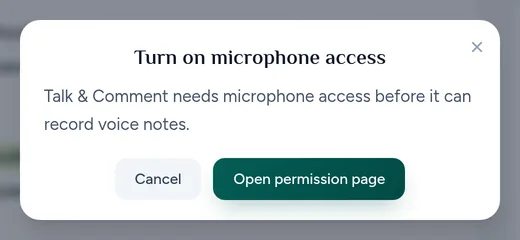
Open permission page starts the extension's microphone permission flow. Click Allow microphone on the permission page. The page is headed Talk & Comment needs your microphone. Approve microphone access when Chrome asks; Chrome's prompt wording can vary.
Return to the page where you were recording. Try a short recording after access is granted.
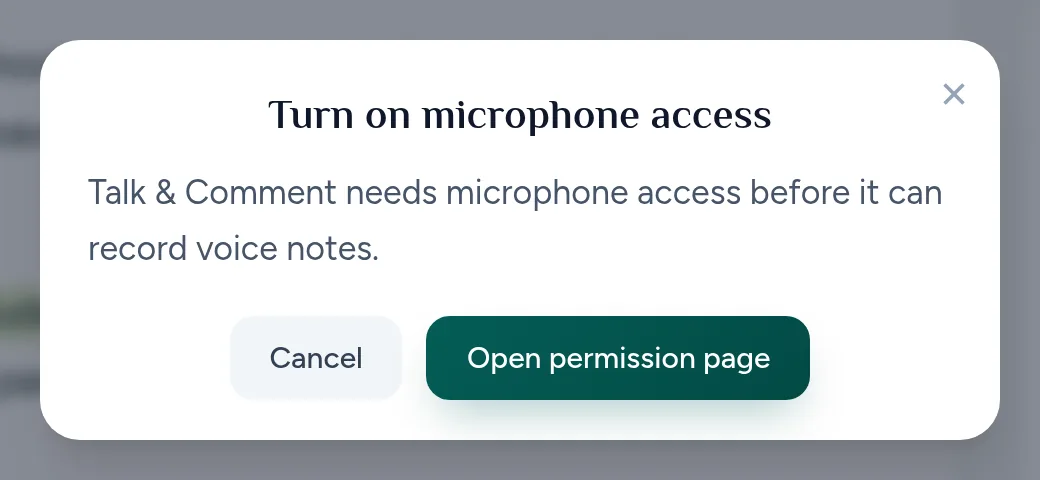
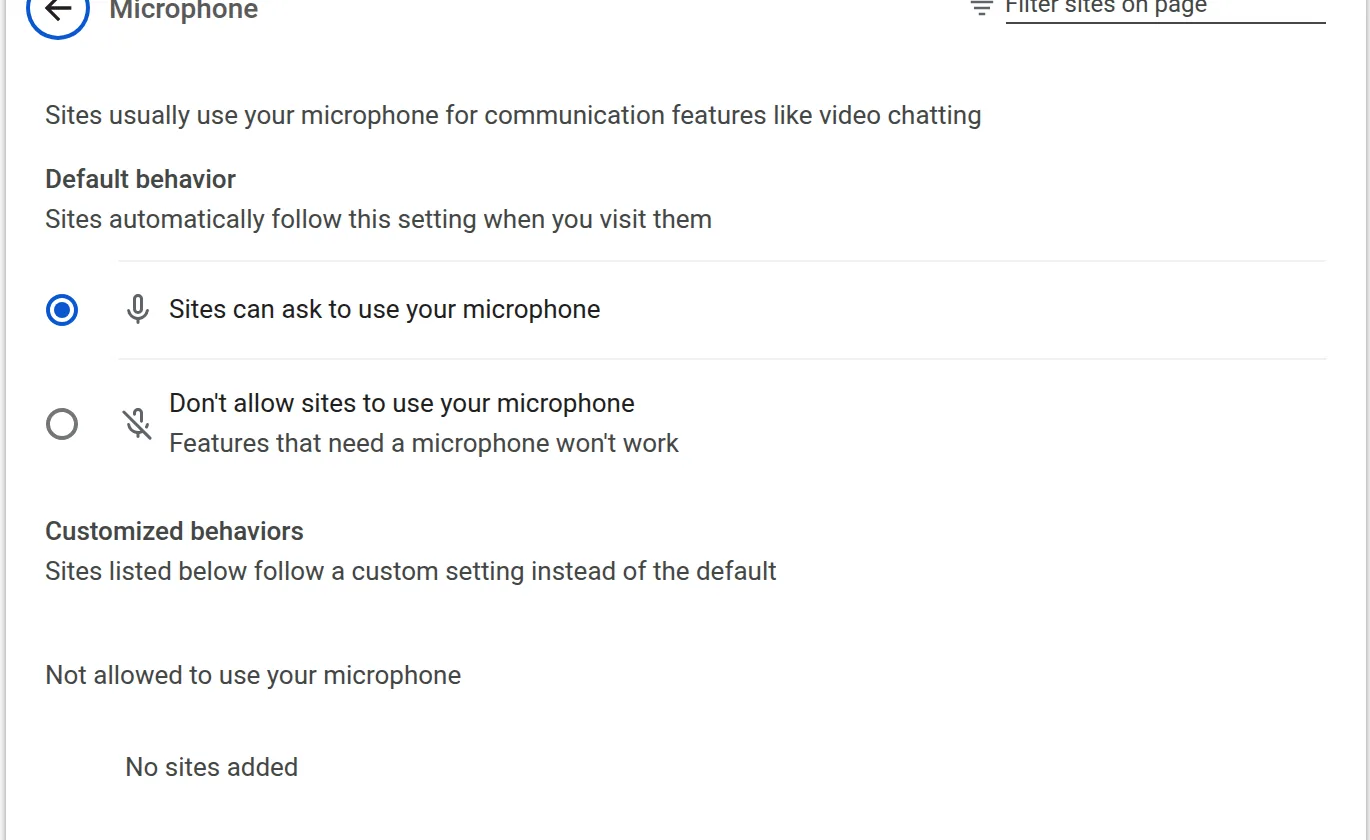
If Chrome does not ask or access stays blocked, click Open Chrome settings on the permission page. You can also enter chrome://settings/content/microphone in the address bar. Allow Talk & Comment to use the microphone, then return to the permission page and click Allow microphone again.
The browser recorder is blocked
For a recording made on the Talk & Comment website, check that website's permission instead:
- Open View site information. This is the control to the left of the web address. Select Site settings.
- Set Microphone to Allow. Change it for the Talk & Comment page where you are recording, then refresh and try again.
See record without the extension for the browser-recording workflow. It still needs a working microphone and your account or school's permission to record.
Check the input and device settings
- Check the microphone itself. Connect the microphone you want to use and turn off its hardware mute, if it has one. If the permission page says another app is using it, close that app's microphone session before trying again.
-
Choose the input in Chrome. Open
chrome://settings/content/microphoneand select the microphone you want as Chrome's default. -
Check Preferred microphone in Talk & Comment. Open the web app's Settings and choose your input under Preferred microphone. This preference is local to this browser and device; with the extension connected, it also applies to the extension here.
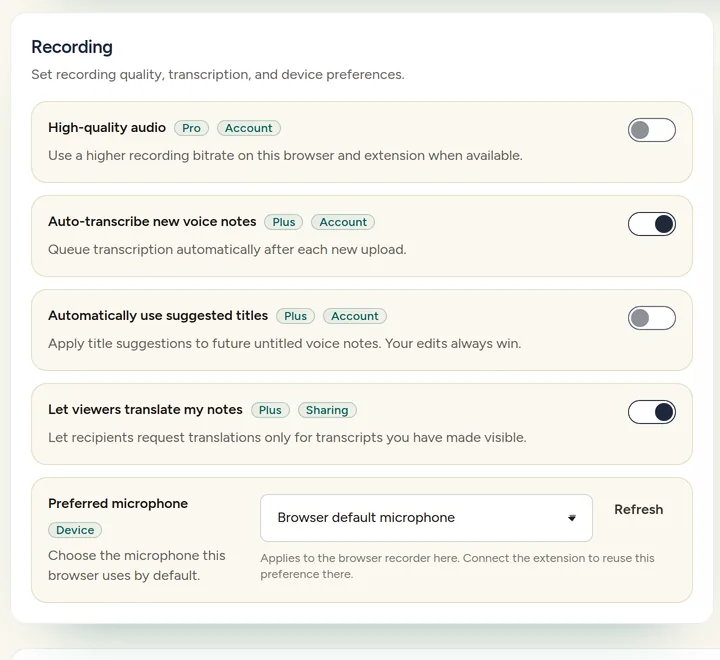
Use Preferred microphone to choose the input for this browser. (Example account.) Check operating-system microphone access. Make sure your computer allows Chrome to use the microphone. Follow the system prompt if Chrome asks you to open settings, then restart Chrome if required.
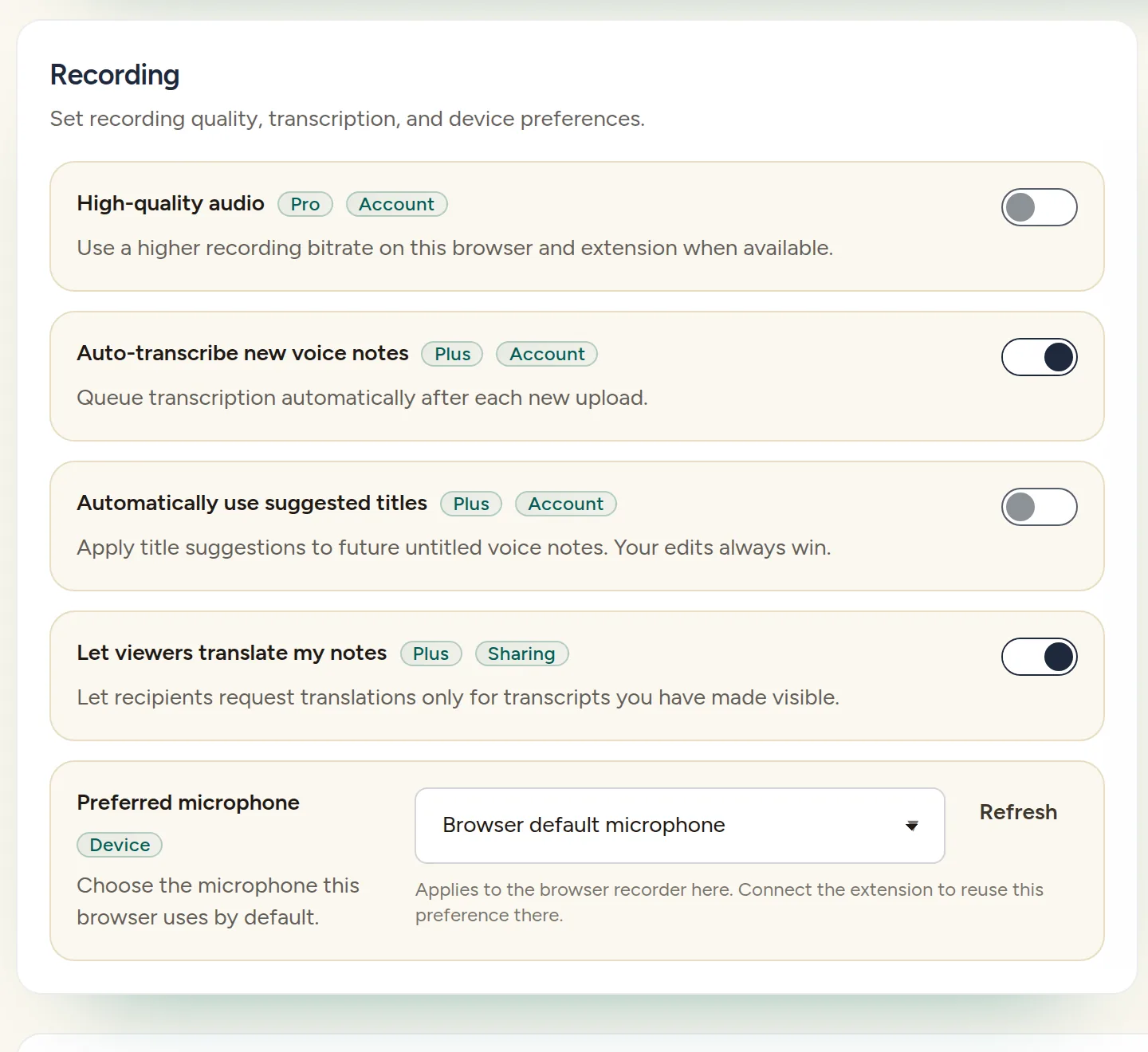
If no microphone is found or the selected input is unavailable, connect an input or choose another one. Changing permission alone does not supply a missing microphone.
Chromebook microphone and school-managed settings
On a Chromebook, select the time, then Settings → Privacy and security → Privacy controls. Check that Microphone access is on. If the device has a physical microphone switch, check that too. Google's Chromebook microphone guide explains these controls.
For more browser-specific steps, use Google's Chrome microphone guide. When asking for help, include the exact message, your selected microphone, and whether the device is managed. Remove student or personal information from screenshots.
Was this article helpful?
Still stuck? Email support and a real person will get back to you.