
Recording and sharing
Add voice comments to Google Slides
Record a voice comment for Google Slides, copy its link, and share it in a posted comment or test it in speaker notes.
Last updated October 16, 2026
Use Talk & Comment to record feedback for a slide, then share the recording as a link. Start with a posted comment when you want feedback beside the slide.
Record and post a comment
- Open the presentation in Chrome. Complete the extension setup first if needed.
- Record your feedback. Click the floating Talk & Comment microphone on the page. Allow microphone access if asked, then speak when REC appears.
- Save and copy the link. Click Done, wait for upload, then click Copy link.
- Select the slide and add a comment. Use Google's Add comment control, paste the recording link, and click Comment to post it.
- Check the posted link. Open it in a browser tab and play the recording before sharing the presentation.
Choose between comments and speaker notes
| Location | What to expect |
|---|---|
| Posted comment | An eligible recording link can become a small player when the viewer has the extension and site access. |
| Comment box while you type | The link stays text in the editor. Post the comment before checking for a player. |
| Speaker notes editor | Treat this as a place to try a plain link, not an inline player. Paste a test link and check whether your intended listener can find and open it. |
| Slide canvas or editable text box | Do not expect the extension to insert a player into the slide content. |
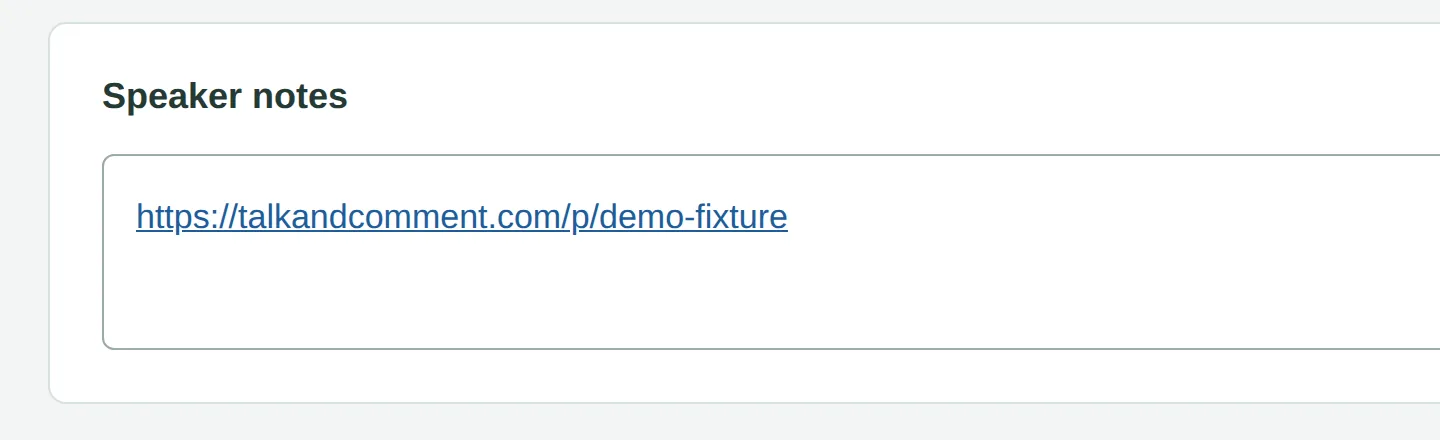
The extension skips editable areas when it creates inline players. A missing player in an editor does not by itself mean the recording is broken.
Check student copies before assigning
- Prepare a sample using your assignment workflow. Put the recording link where you want students to find it.
- Inspect an actual student copy. Check whether the link is present and accessible in that copy. Test the comment or speaker notes location you chose rather than assuming it carries over.
- Test listening as the intended student. Open the link and play the recording. Check sharing permissions if it asks for sign-in.
- Provide the direct link separately if needed. Use a school-approved location the student can access if the copied presentation does not contain a usable link.
If the player is missing
Open the original recording link in a browser tab. Listeners do not need the extension for that player page, but organization sharing restrictions still apply.
Use the inline player checklist when the link opens but does not show a player in the presentation. Use playback troubleshooting when the recording itself will not play.
Was this article helpful?
Still stuck? Email support and a real person will get back to you.