
Account and settings
Hide, disable, or uninstall Talk & Comment
Hide the Talk & Comment floating recorder, disable the Chrome extension, or uninstall it, without confusing removal with billing cancellation.
Last updated October 16, 2026
Hide the floating button if it is in your way. Disable the extension to pause it, or remove it from Chrome if you no longer want it installed.
Hide the floating recorder
For the quickest way to hide it, hover over the floating microphone and select the × close control.
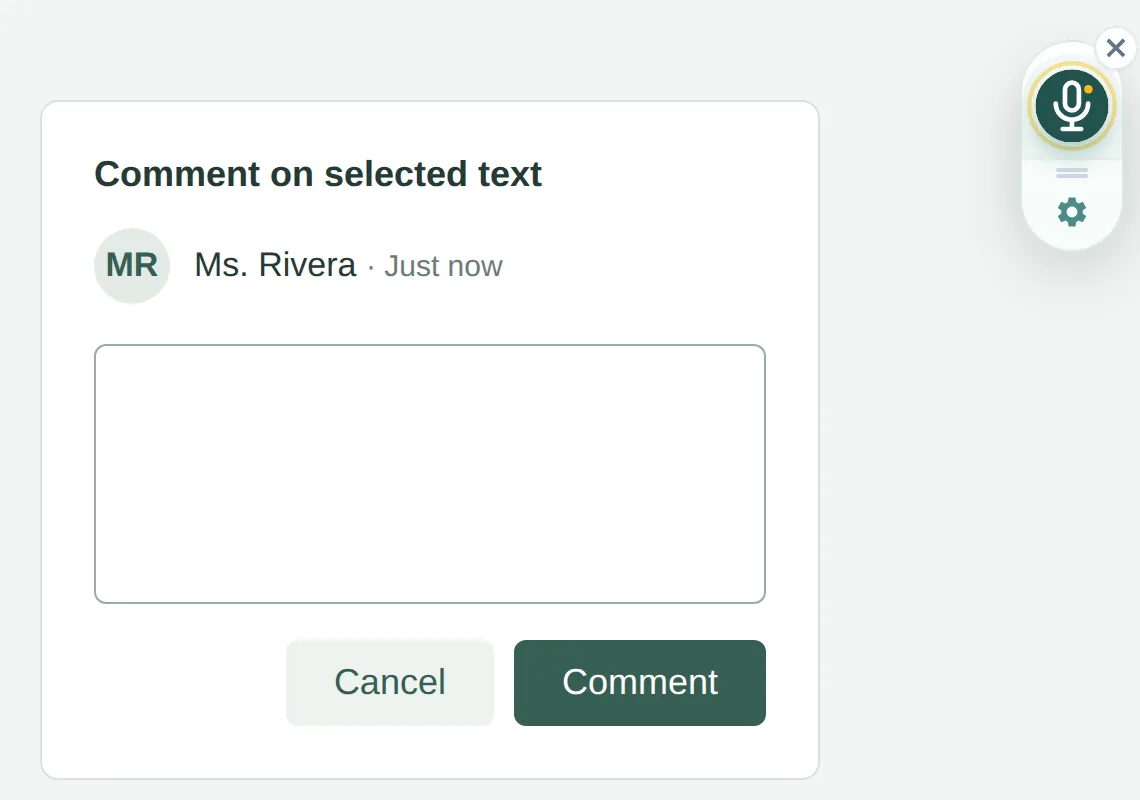
You can also hide or restore it from the extension popup:
- Open Talk & Comment from Chrome's toolbar. If the icon is not pinned, open Chrome's Extensions menu and select Talk & Comment.
-
Switch Show Recording Button off. Turn the same switch on to show it again.
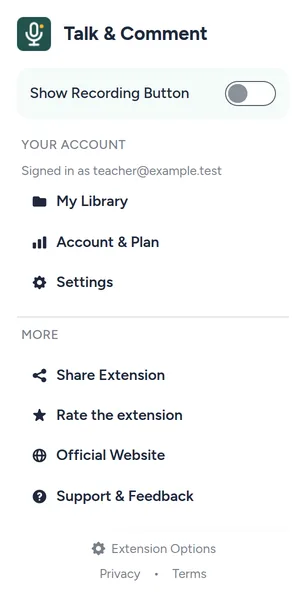
Show Recording Button controls the floating recorder across supported pages.
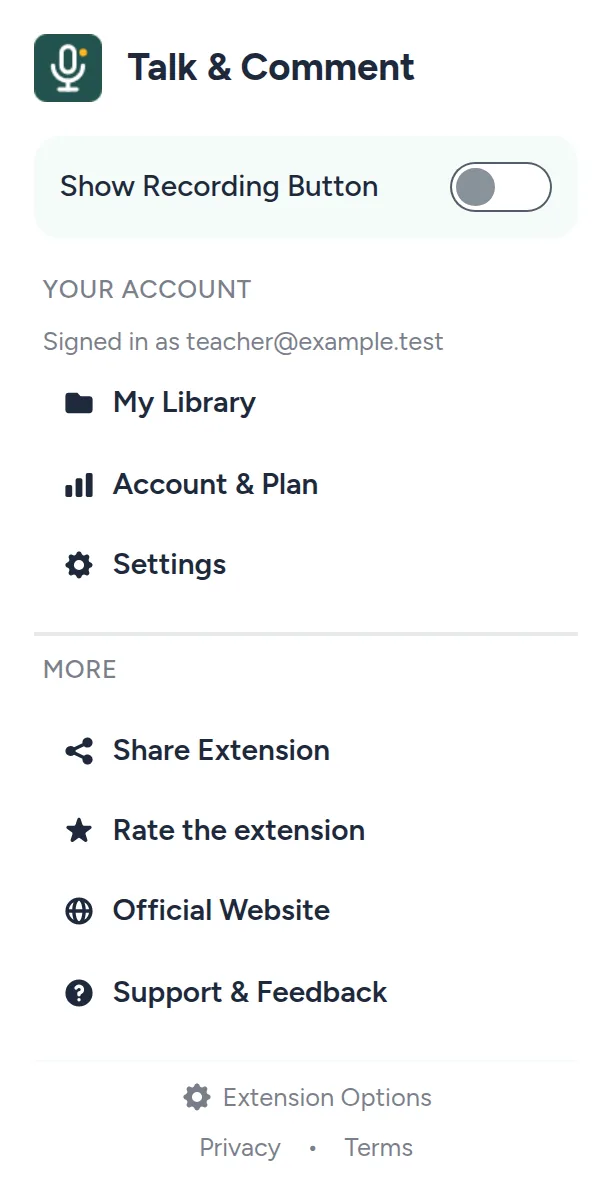
In the web app's Settings, Floating recorder controls the same preference. It applies globally, not to the current site. When signed in, the preference syncs with your account across browsers. Hiding does not change school recording permissions.
Temporarily disable the extension
-
Open Chrome's extension manager. Enter
chrome://extensionsin the address bar and find Talk & Comment. -
Turn the extension off. This pauses the extension rather than removing it. Turn it back on from the same page when needed.
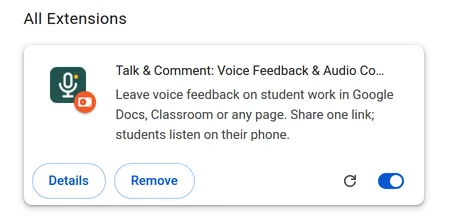
Use the switch to disable the extension. Remove uninstalls it.
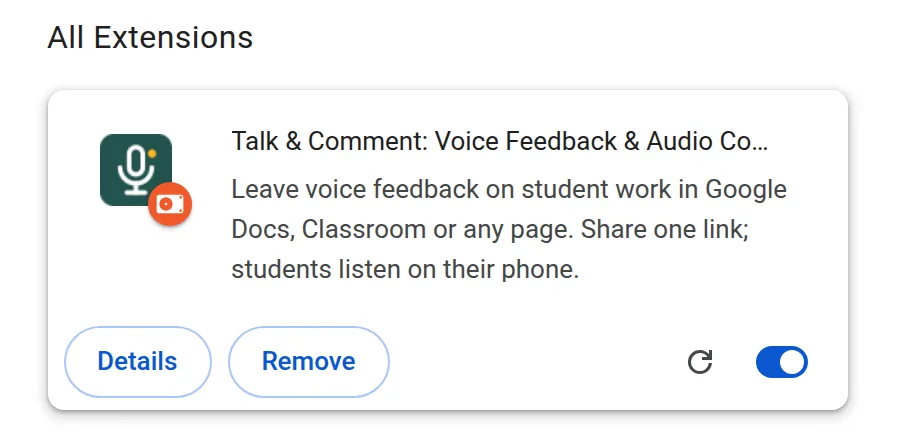
If an already-open page still shows old extension controls, reload that page. On a school-managed device, ask school IT if Chrome prevents you from changing the extension.
Uninstall the extension
-
Open
chrome://extensions. Find Talk & Comment. - Select Remove. Select Remove again in Chrome's confirmation.
Removal stops the extension's recorder and extension-injected players. It does not remove the web recorder or delete uploaded recordings. Existing shared links remain subject to the recording's availability and sharing permissions.
An optional uninstall feedback page may open. You can choose a reason and select Send feedback, or skip it. Follow-up contact is optional. If you used Talk & Comment without signing in, reconnecting you with uploaded notes after uninstalling may be difficult.
Students: ask an adult for help
Ask your teacher, parent, guardian, or school admin for help with classroom or account problems. On a managed device, ask school IT before trying to change a required extension.
Teachers and school admins can email [email protected]. Include the browser, device, whether the device is school-managed, and what happened. Remove student names and sensitive content from screenshots before sending them.
Was this article helpful?
Still stuck? Email support and a real person will get back to you.