
Getting started
Record and share audio feedback with students
A teacher guide to recording audio feedback, sharing voice notes with students, and checking school permissions before classroom use.
Last updated October 16, 2026
Use this workflow when you are recording audio feedback for students on an assignment. For installation and your first test note, start with Install Talk & Comment.
Decide what to say
Choose one piece of work and one next action. Try this structure rather than reading every written comment aloud:
- Name the location: “In the second paragraph…”
- Describe what you noticed: “…you introduce a claim, but the example does not explain it yet.”
- Give one action: “Add a sentence connecting your evidence to that claim.”
For math, try: “Your setup is correct. In step three, check whether you distributed the negative to both terms.” For a lab report, try: “Point to the numbers in your results that support the conclusion.”
Record, copy, and post the feedback
- Open the student's work. Choose the passage or problem you want to discuss.
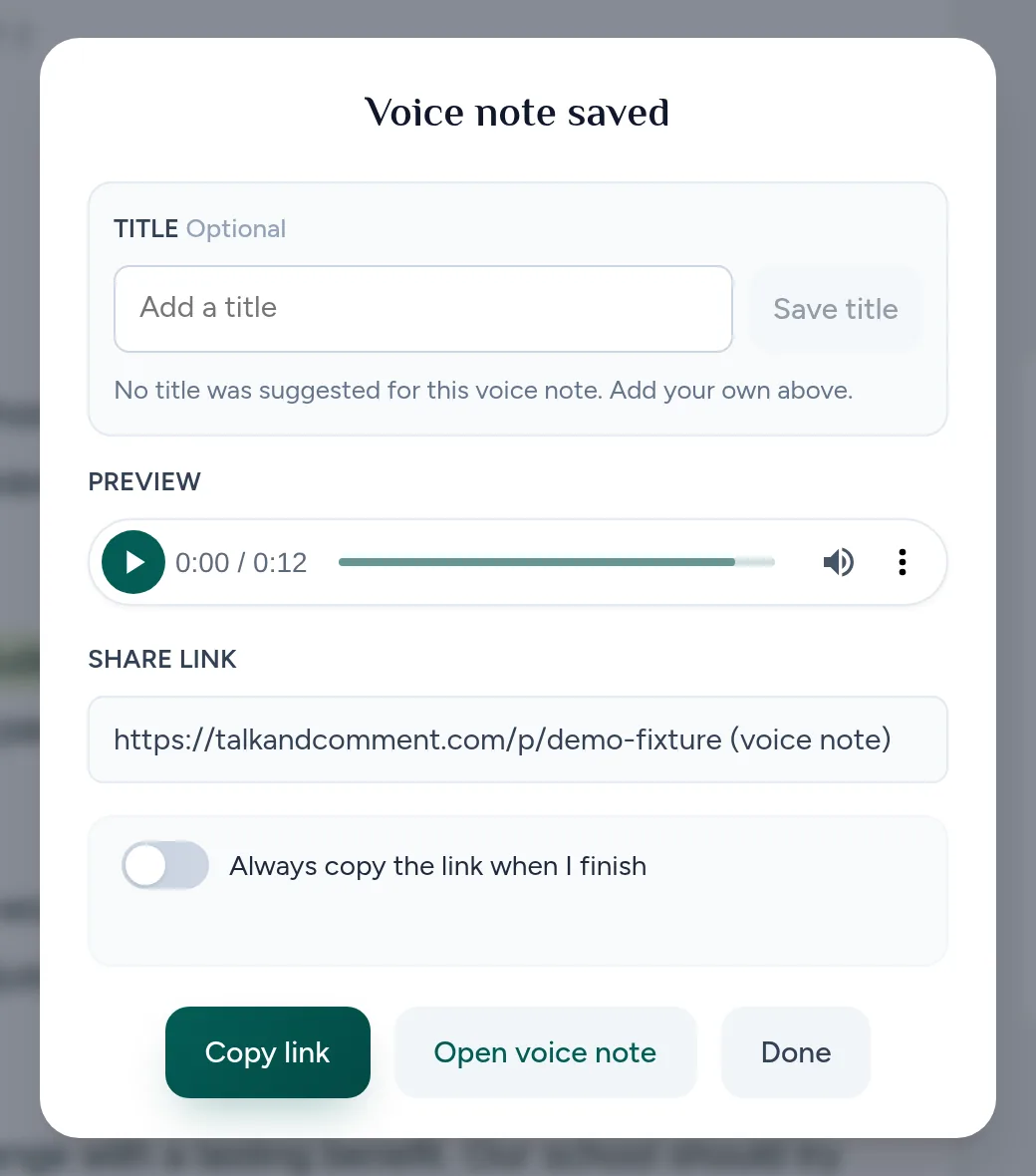
- Record your feedback. Click the floating Talk & Comment mic, speak, then click Done. Wait for the Voice note saved card.
-
Click Copy link. New extension installations do not copy automatically. You can turn on Always copy the link when I finish on the saved card if you prefer automatic copying.
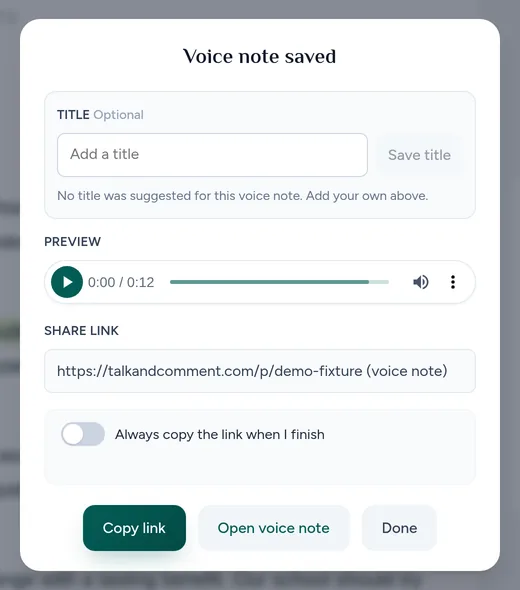
Copy the saved note's link before returning to the student's work. (Example page.) Paste the link into your feedback. Add a short direction, such as “Listen, then revise paragraph two.” Post or send it in the tool you are using.
Check the posted link. Open it and listen before moving to the next student.
Choose where students will find the link
| Tool | Where to put the feedback |
|---|---|
| Google Docs | Add a comment beside the relevant passage, paste the link, and post the comment. |
| Google Classroom | Paste the link in the assignment's private comment field and post it. Follow your normal grading and return workflow. |
| Google Slides | Use a comment on the slide you are discussing. See the Slides guide for other sharing considerations. |
| Canvas, Schoology, or another LMS | Use a feedback field that accepts links. Check the posted result; the LMS controls what the field displays. |
| Paste the link into the message body and send it to the intended recipient. |
For Google-specific steps, see Voice comments in Google Docs and Classroom. For LMS links and embeds, see Share in an LMS.
Check the student listening path
Students can open the link and listen in a compatible browser without the Chrome extension. Public links do not require a Talk & Comment account. If your school disables external sharing, only signed-in members of your Talk & Comment team can open the recording.
A small inline player is not guaranteed inside every comment box or editor. If the link stays plain text, the student can open the Talk & Comment player page instead.
If you want to include text with the audio, see Transcripts and translation. A transcript must be available and visible before students can read along with it.
Check school settings before a class activity
- External sharing: ask your school administrator whether families or people outside the school team can open your notes. Do not use a public link for sensitive feedback unless you intend its recipients to have access.
- Student recording: listening to your feedback and recording a reply are different permissions. New school teams start with student recording off; existing teams keep their prior setting. Ask the authorized school administrator before assigning student recordings, and use Student recording setup.
- AI features: recording permission does not enable student AI processing. Review AI processing and school choices with your school before using transcripts or translation with student accounts.
- Privacy approval: follow your school's process for educational tools and data agreements. Share the school privacy and DPA guide with the person reviewing the tool.
For notes students will need later in the term, check Recording limits and retention before relying on the shared link as your only copy.
Was this article helpful?
Still stuck? Email support and a real person will get back to you.