
Recording and sharing
Who can listen to a Talk & Comment voice note?
Learn who can open a Talk & Comment voice note, when account restrictions apply, and when listeners need the extension for inline playback.
Last updated October 16, 2026
A recording link and the document or message containing it have separate access rules. Check both before sending feedback to a student or family.
Who can open the recording
| Recording access | What the listener needs |
|---|---|
| Public link, the default when external sharing is allowed | The link and a compatible browser. No Talk & Comment account or extension is required. |
| Owner's organization has turned off external sharing | A signed-in account that belongs to the same Talk & Comment team as the recording's owner. The extension is not required. |
The school admin control is External sharing. When it is off, a matching school email suffix alone is not enough; the listener must belong to the sender's team in Talk & Comment. Ask your authorized school admin about organization policy rather than looking for a per-recording recipient list.
If you see Sign in to open this voice note, click Sign in and use the school or work Google account associated with the sender's team. If you are signed in and still blocked, ask the sender to check access. Signing in does not by itself grant team membership.
When the extension matters
- Open a shared player link: no extension is required.
- See a small player inside a supported page: the extension needs to be installed and allowed on that site, and the link must be in an eligible location.
- Record while working inside another site: use the extension workflow.
- Record inside Talk & Comment without the extension: use the browser recorder.
Permission to listen is separate from permission to record. A school's student recording policy still applies when a student uses the browser recorder.
What listeners can read
A shared note may include a transcript. The owner controls whether to attach it, and transcript review and school AI restrictions also affect whether listeners can see it. A transcript is not automatically visible merely because the audio link opens.
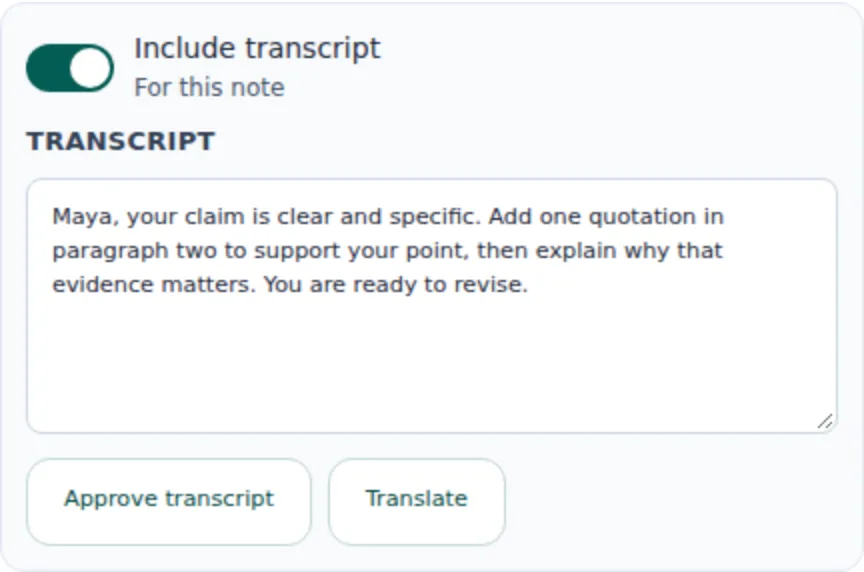
Review the transcript and correct sensitive or inaccurate text before sharing. Use the transcripts and translation guide for the visibility controls.
Choose the name recipients see
- Open Account & Plan in Talk & Comment. Find Your public name.
- Enter a Public display name. Click Save public name to use it on shared voice notes and signed-in replies, including existing ones.
- Use Clear name if you want a generic name. This changes the public name, not your Google account or billing details.
Share student feedback safely
- Send each link only through a school-approved channel to its intended audience.
- Check the permissions of the Google document, LMS page, or email separately from the recording's access.
- Keep sensitive student information out of titles and surrounding text. Follow school policy for the audio and transcript too.
- Remember that an unrestricted link can be forwarded. A private message or document does not create a Talk & Comment permission for one named student.
- In Google Classroom, private comments are visible to the student and all course teachers. Use the Google feedback guide for posting steps.
If a listener is blocked
- Open the recording link in a normal browser tab. Try the direct link rather than an LMS preview pane.
- Read the access message. For an organization restriction, check the account and team membership with the sender. Repeated refreshing will not change that policy.
- Ask an adult for help if you are a student. Contact your teacher, parent, or school admin. For managed-device or network problems, the school can use the IT setup guide.
Was this article helpful?
Still stuck? Email support and a real person will get back to you.