
Recording and sharing
Share voice notes in your LMS, email, or a web page
Copy a Talk & Comment voice note link, paste it in your LMS or email, and choose a direct link or an optional web embed.
Last updated October 16, 2026
Start with a plain recording link. Use it in a field that accepts links rather than treating it as an audio file upload.
Copy the saved recording's link
- Finish your recording. In the extension recorder, click Done and wait for upload.
-
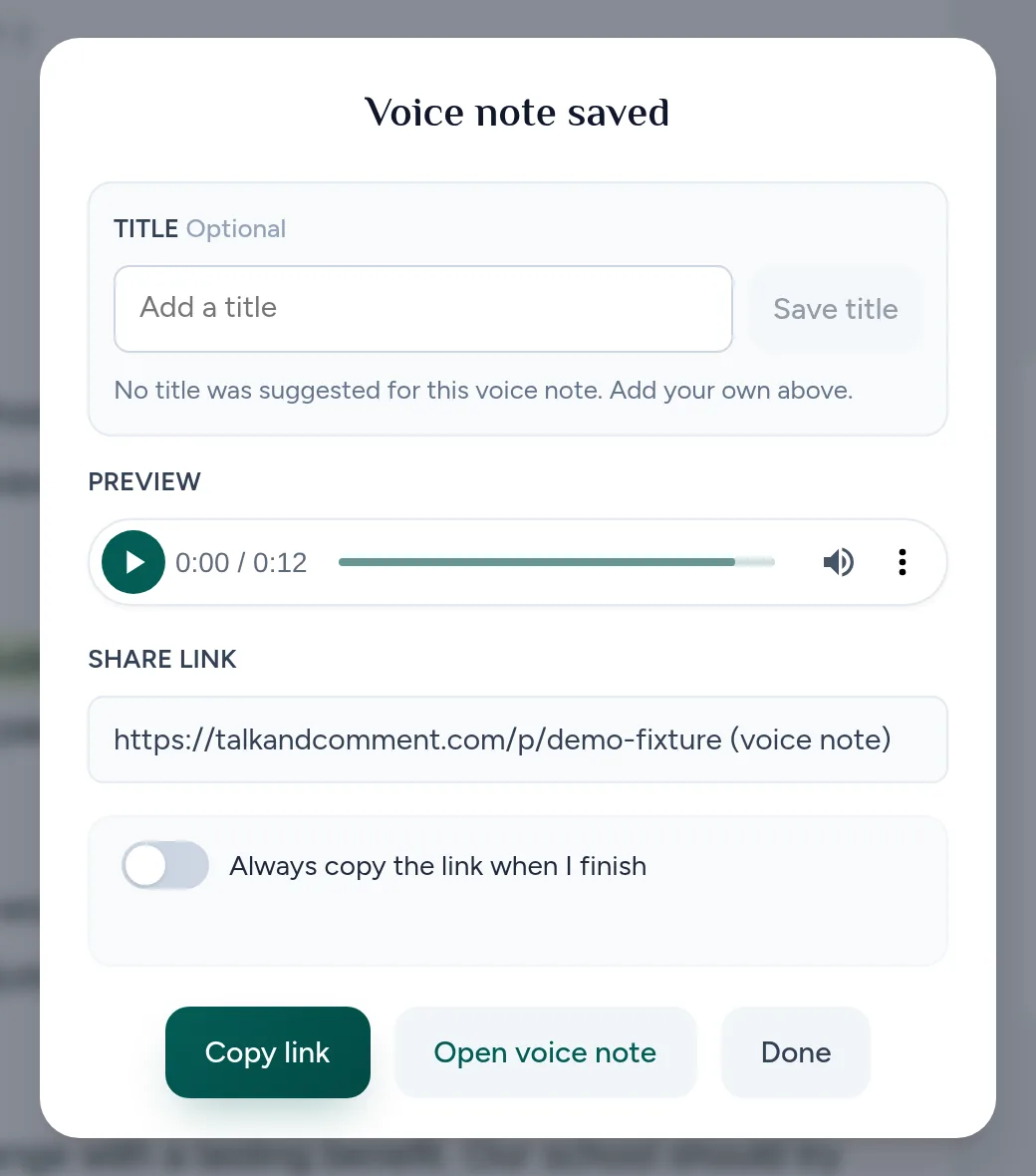
Click Copy link. Copying once does not turn on automatic copying for later recordings.
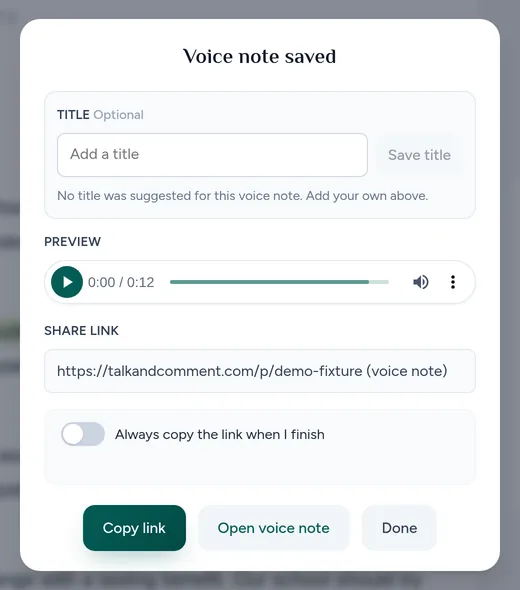
Use Copy link for this recording. (Example page.) -
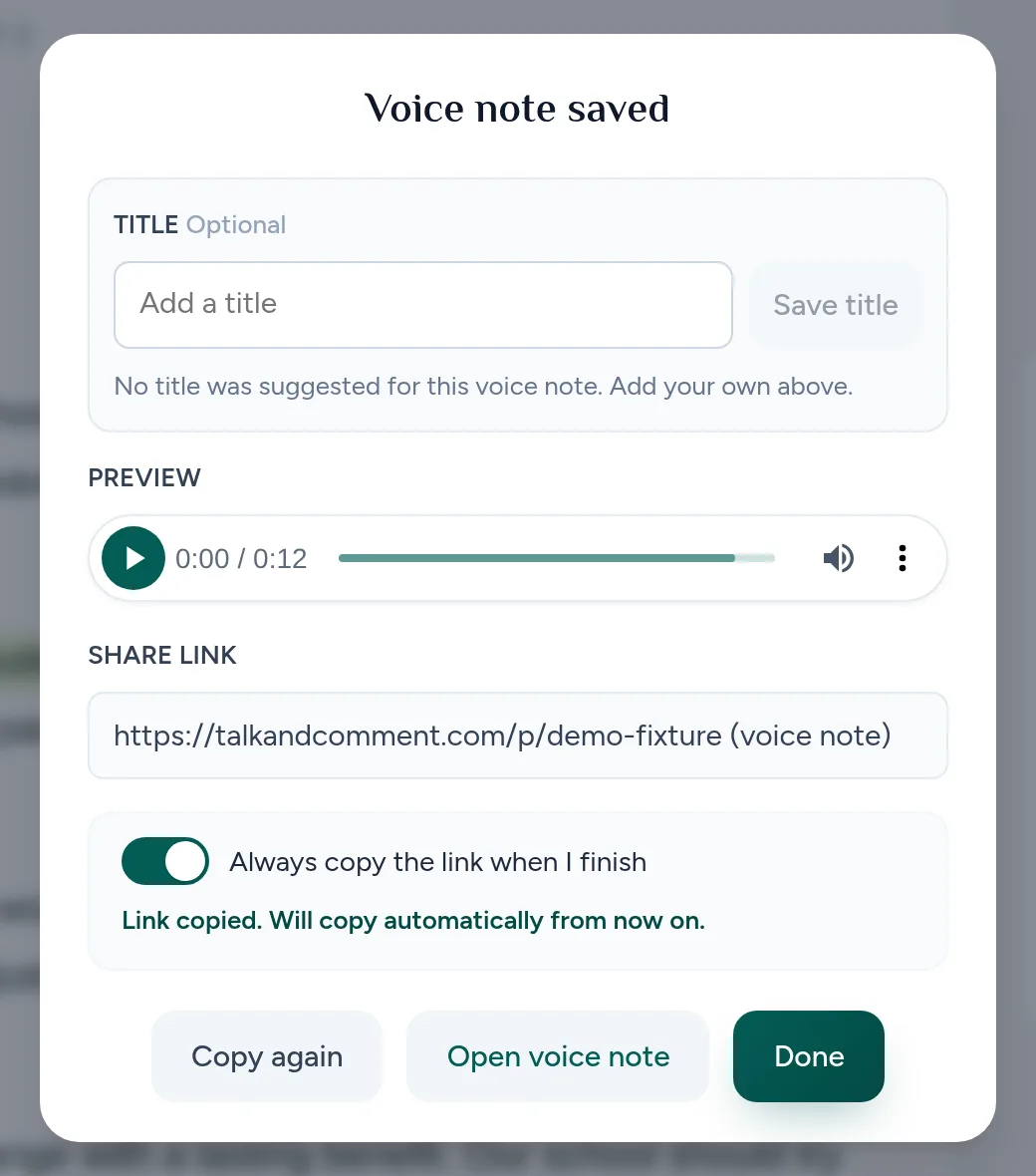
Turn on automatic copying if you want it. On the saved card, enable Always copy the link when I finish. New installs start with automatic copying off.
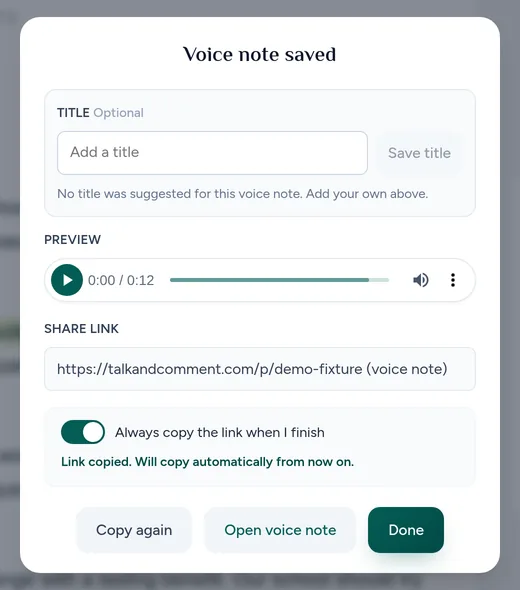
The confirmation says the link is copied and future recordings will copy automatically. (Example page.)
To reshare an older recording, find it in your recordings library and use Copy link there.
Paste into your LMS or email
- Choose the destination and audience. In Canvas, Schoology, Moodle, or another LMS, use a school-approved comment or content field that accepts a link. In email, use the message body.
- Paste the link with a short label. For example, write “Listen to feedback on your draft,” followed by the recording link. This is link sharing, not a native LMS audio attachment or roster integration.
- Post, save, or send using that tool's controls. Talk & Comment does not submit the LMS comment or email for you.
- Check the published message. Open the link from the version your recipient can access, and play the recording.
Small player or direct player page
On supported pages, the extension can replace an eligible posted link with a small player. The viewer needs the extension and site access for that replacement. Editable text boxes are excluded, so a link can stay plain text while you write.
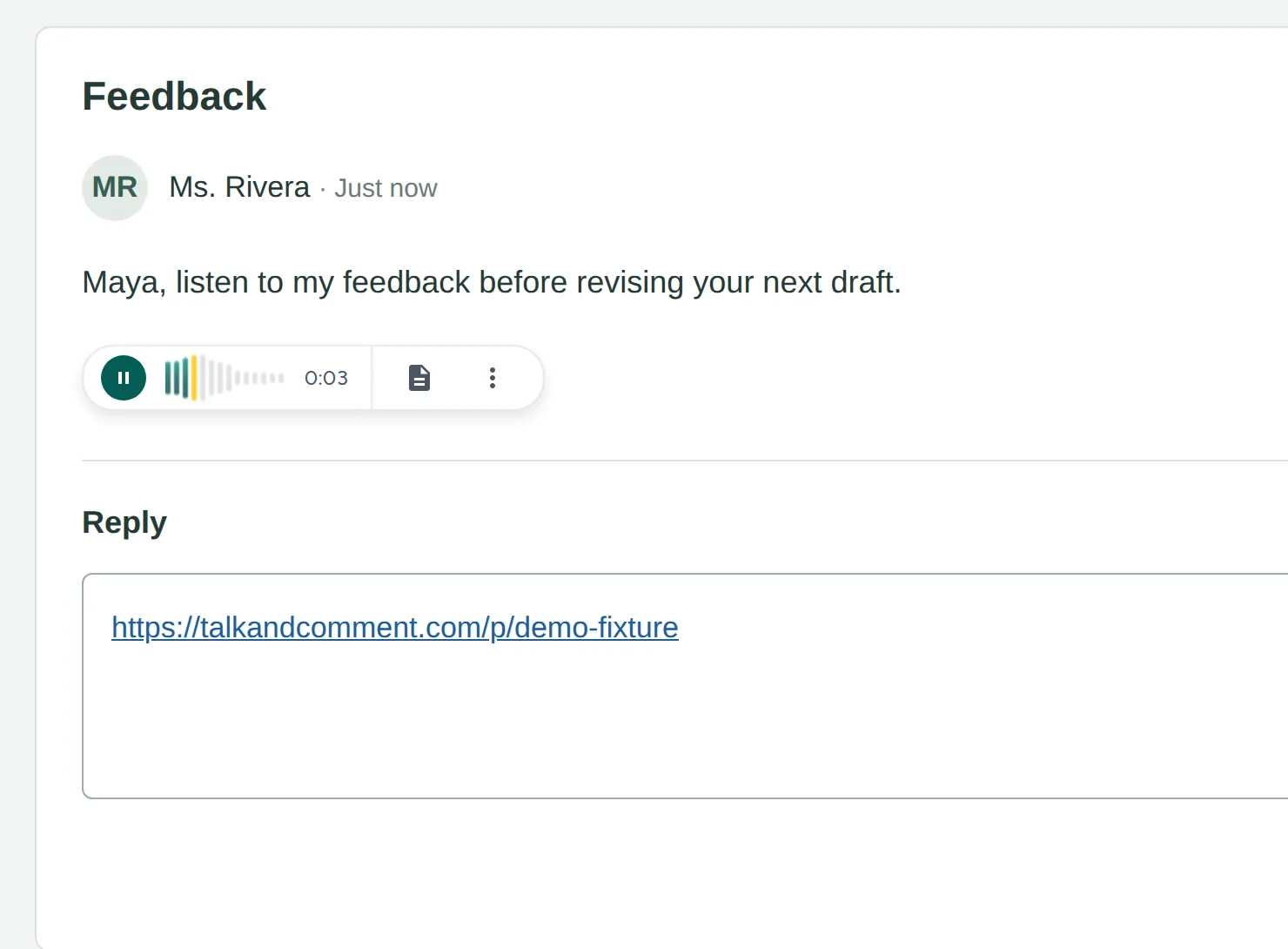
Without an inline player, open the link in a browser tab to reach the recording's player page. Basic listening does not require the extension. Public links need no account; organization-restricted links need a signed-in member of the sender's Talk & Comment team.
If the direct link plays but no small player appears, use the inline player checklist.
Optional embeds for page owners and school IT
If you control a web page or your LMS permits custom HTML and scripts, use the developer embed guide. It includes a JavaScript web component, plain-link examples, and network policy guidance. This is an optional HTML setup, not a native Canvas or Schoology integration.
Ask school IT to review allowed scripts and media hosts before adding an embed to a managed learning platform.
Was this article helpful?
Still stuck? Email support and a real person will get back to you.