
For schools and IT
Let students record voice notes with school permission
Check school recording permissions, complete student setup, and keep student recording and AI permissions separate.
Last updated October 16, 2026
Use this guide before asking students to create voice notes. Listening to a teacher's note and recording a student's own note are separate workflows.
Check the school's recording policy
New school teams start with Student recording off. Existing teams keep their previous setting. Only a Talk & Comment Owner or Sys admin can change this policy; a teacher's personal subscription does not replace school permission.
-
Ask the authorized school admin to review the workflow. The admin opens
talkandcomment.com/app/adminand finds Policies. -
Turn on Student recording if the school approves. Its description is Allow students in this domain to make voice recordings. The switch saves the change when clicked; check for an error before continuing.
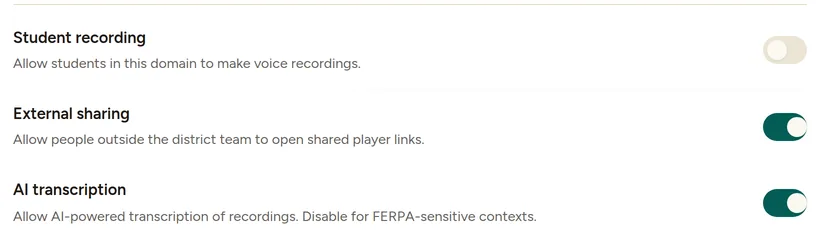
Student recording is off on a new school team until an Owner or Sys admin turns it on. (Example account.) Test with an intended student account. Use the student's school Google account and a school-approved device before assigning the recording task.
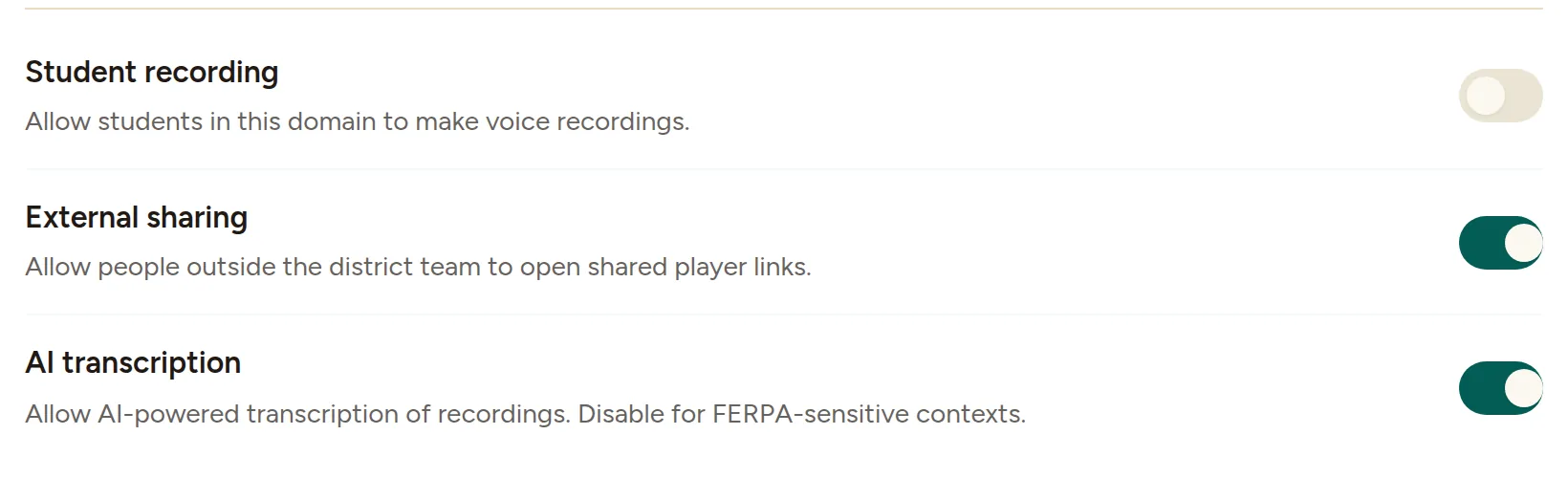
If the student sees Your school turned off recording., ask the school's Owner or Sys admin to check the policy. Reinstalling the extension or buying a teacher plan is not the policy control.
Complete the student's setup
-
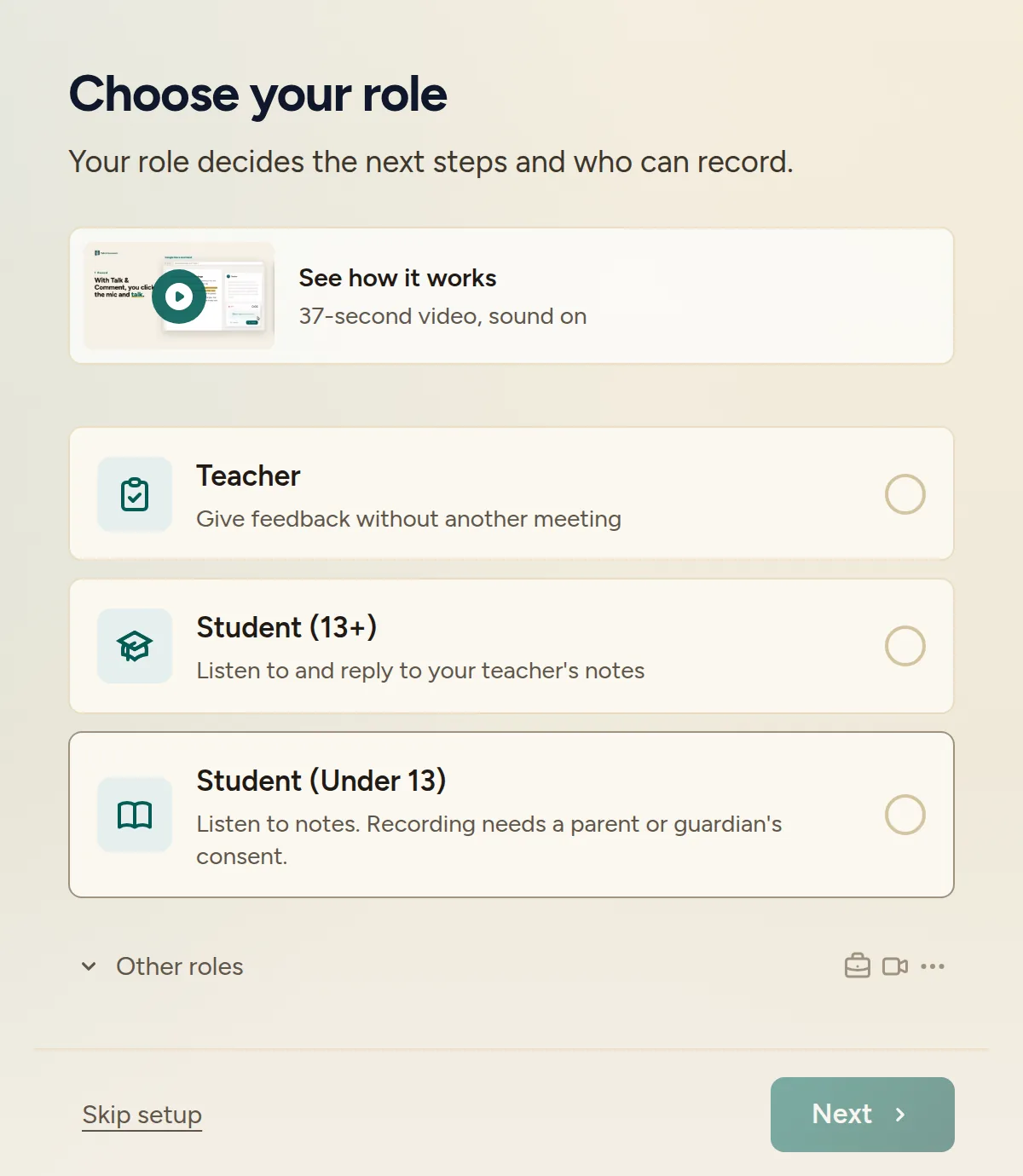
Choose the correct student role. In Choose your role, select Student (13+) or Student (Under 13) to match the student.
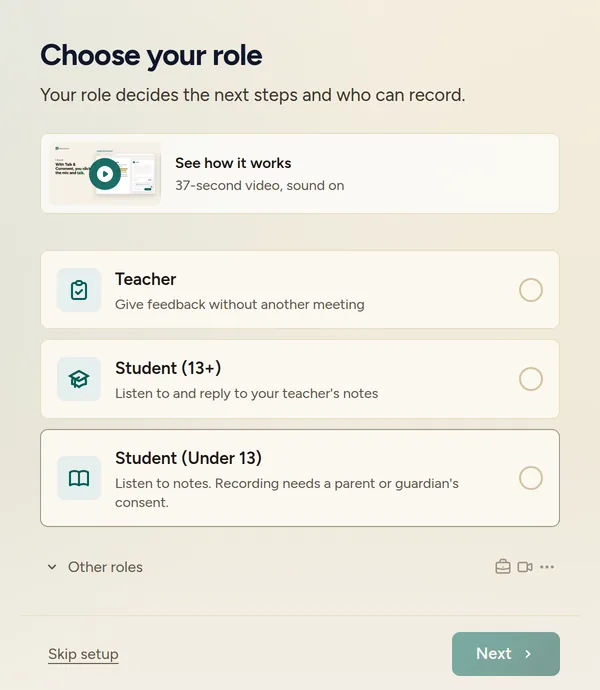
Choose the student's actual role and age group. Follow the recording path the school approved. Students can use browser recording without the extension, or the extension workflow in first-note setup. Both still depend on school recording permission and microphone access.
If setup is for a student under 13
The under-13 setup offers viewing-only use with recording off. If the school approves recording, complete the following with the responsible adult. These are the setup controls, not a substitute for your school's consent review.
- Review Allow recording. The setup says Requires parent or guardian consent. Leave it off if the required approval is not in place.
- Complete the adult details. Enter Parent/Guardian Full Name, Relationship to Student, and Guardian Email. The adult completes the approval confirmation shown in the form.
- Sign in to save consent. If prompted, use Sign in to save consent. The recording choice needs saved consent and an authenticated account; entering a local draft alone does not enable it.
Completing this setup does not override the school's Student recording policy.
Keep student AI permission separate
Turning on Student recording does not turn on student transcription or other AI features. Only a district, school, or team setting can enable AI for student accounts; there is no separate individual-consent route for student AI.
The admin console shows Student AI level. To change it, the district sends a written request to [email protected]. The team's AI transcription switch must also allow AI processing. A teacher's personal AI preference or purchase does not replace those school controls.
Let students listen without enabling recording
Students do not need the extension to open a shared voice-note link in a browser. Public links need no account. If the recording owner's team disables External sharing, the listener must sign in as a member of that same Talk & Comment team.
Have students ask a teacher, parent, or school admin for help. For the adult managing these settings, continue with the school admin console guide.
Was this article helpful?
Still stuck? Email support and a real person will get back to you.