
For schools and IT
Use the school admin console for domain and team policies
Open the school admin console to review roles, verify a Workspace domain, change team policies, and check usage and plan details.
Last updated October 16, 2026
Use talkandcomment.com/app/admin for your Talk & Comment organization's administration. Access requires both team membership and a Talk & Comment admin role; a personal teacher subscription or Google Workspace admin role alone does not grant access.
Check your admin role
The Administrators section lists the people who can open the console.
| Role | Access |
|---|---|
| Owner | Can change domain and policies, view organization billing, and manage admin roles. |
| Sys admin | Can change domain and policies and view organization billing, but cannot grant admin roles. |
| Security · Read-only | Can review organization information, domain status, and policies without changing them. Organization billing is not shown. |
Only Owners can assign admin roles. Role assignment uses existing members of the organization; it is not a bulk invitation or seat-provisioning tool.
Verify the Google Workspace domain
An Owner or Sys admin can start verification. Coordinate this with your school's Google Workspace administrator and use an authorized school account for the domain. Talk & Comment admin roles and Google Workspace administrator roles are separate.
-
Enter the primary domain. Find Workspace domain and enter your school's primary Google Workspace domain, such as
district.org. - Click Verify with Google. Complete the Google account selection and consent flow with the authorized school account.
- Check the result. Review the domain status when you return. If verification fails, use the displayed error to review the account or domain. A verified domain offers Re-verify; an unfinished pending request offers Retry.
If Google blocks the sign-in request, follow Google Workspace sign-in approval. This is separate from deploying the Chrome extension.
Review the organization policies
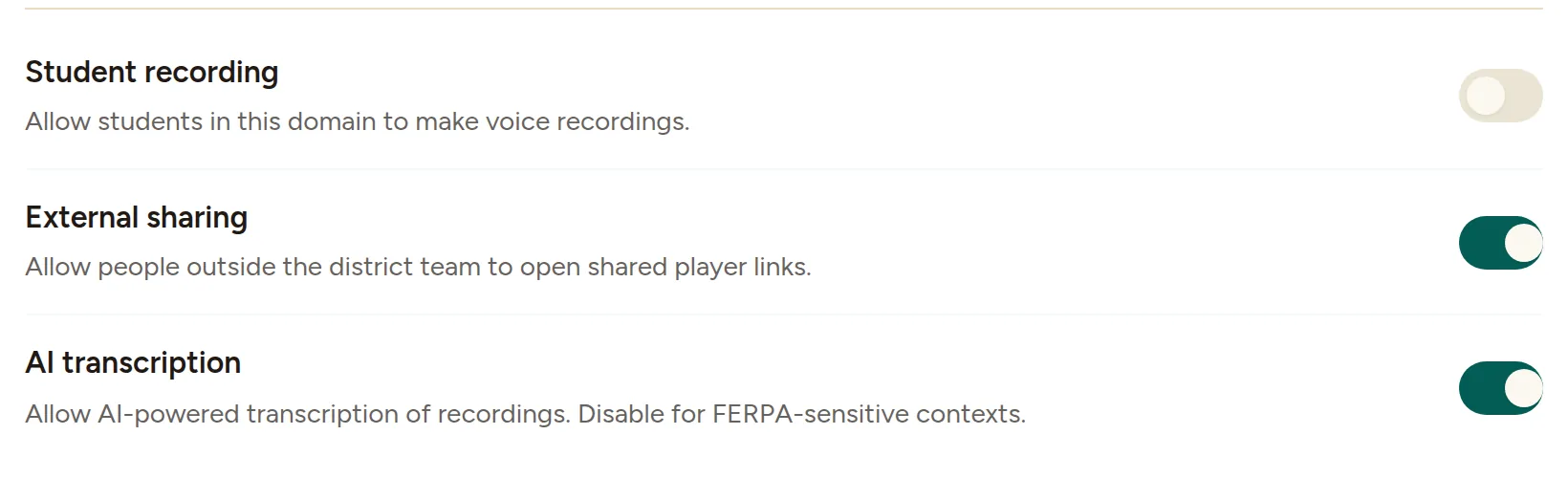
An Owner or Sys admin can change the switches in Policies. A switch sends the update when clicked; check any displayed error before assuming the policy changed. Security admins can read the settings but cannot change them.
| Policy | What to review |
|---|---|
| Student recording | Allows students in the team to create recordings. It starts off for newly created school teams; existing teams keep their previous setting. |
| External sharing | Allows people outside the team to open shared player links. When off, the listener must be signed in as a member of the recording owner's Talk & Comment team. A matching email suffix by itself is not enough. |
| AI transcription | Allows AI transcription subject to plan and school permissions. Turning it off also blocks AI features derived from transcripts, including translation. |
The console also shows Student AI level. Student AI is not a self-service switch: email [email protected] with a written request from the district to change it. Enabling student recording or the general AI switch alone does not authorize student AI.
Current AI processing uses the cloud provider; previous provider choices do not select a different route. Read how transcripts and AI are processed before changing the school's AI permission.
Read the usage overview
Under Overview, This organization shows:
- Seats used: current seats used against the configured limit, when a limit is set.
- Recordings this month: the monthly recording count, with an all-time count beneath it.
- Listens: listening activity for the last 30 days, when available.
- Active members: members who recorded in the last 30 days.
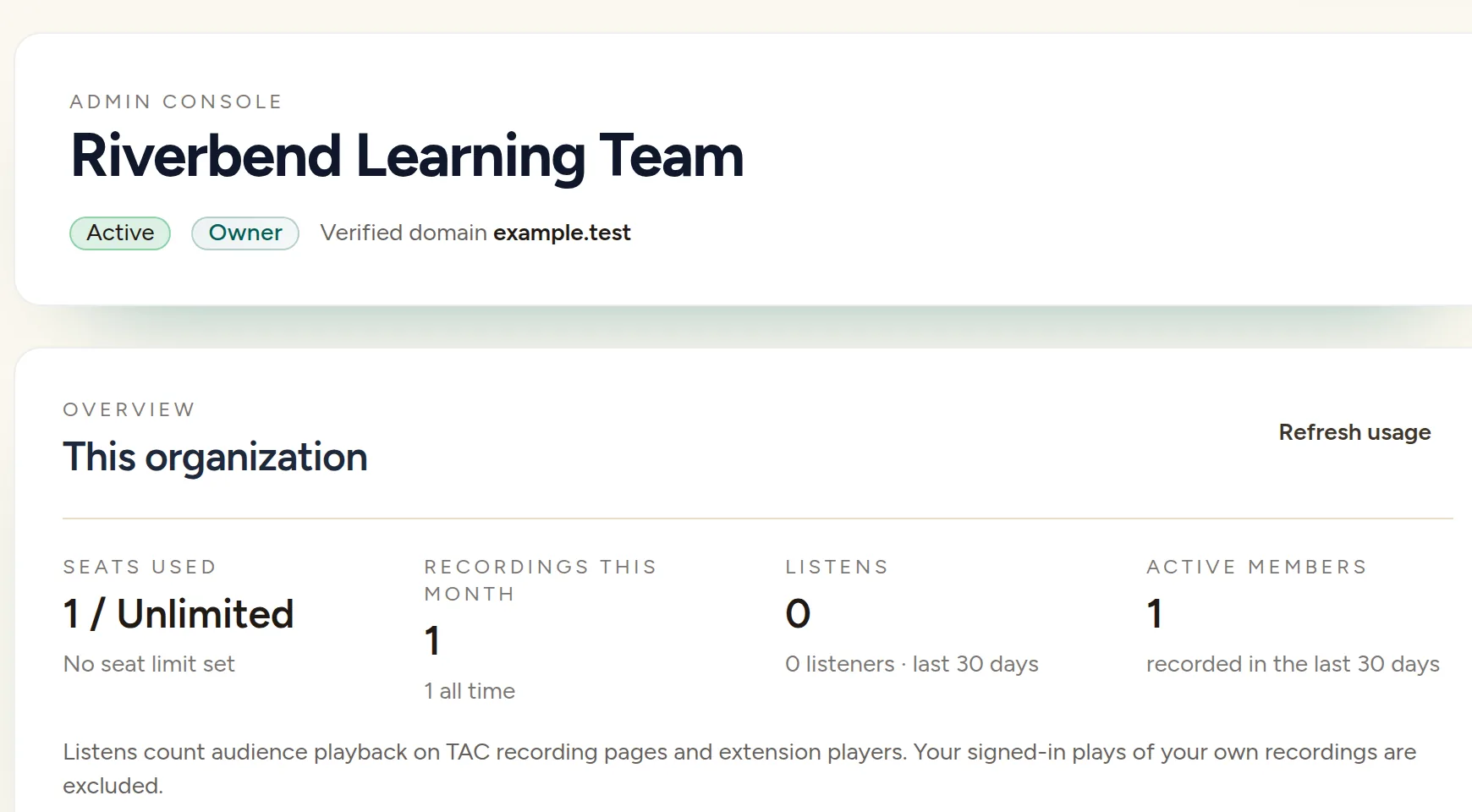
Click Refresh usage to fetch the overview again. Treat these as organization activity counts, not proof that an individual student completed an assignment.
Review the organization plan
Owners and Sys admins can see Organization plan under Plan & billing. This section is read-only: seats and contract terms are set with your Talk & Comment contact, not edited in the console.
For student setup, read student recording permissions. For contract and data-agreement review, read privacy and DPAs for schools.
Was this article helpful?
Still stuck? Email support and a real person will get back to you.