
Getting started
Install Talk & Comment and record your first voice note
Install the Chrome extension, allow microphone access, record a voice note, and copy a link to share.
Last updated October 16, 2026
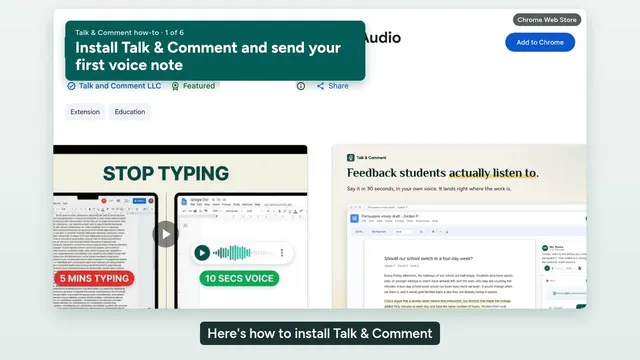
Video transcript
Here's how to install Talk & Comment and send your first voice note. Open the Talk & Comment page in the Chrome Web Store, and click Add to Chrome. A setup page opens. Choose your role, allow the microphone, and pin the extension to your toolbar. Now open any page with student work. You'll see a mic button on the side of the page. Click it, and recording starts. Talk the way you would at the student's desk. When you're finished, click Done. Your voice note is saved, and it has its own link. Click Copy link, then paste that link where your student will see it, like a comment on their work. Your student clicks the link and hears you in their browser. They don't need to install anything. Sign in with Google to keep your notes in your library. The free plan includes 25 recordings a month.
Use this guide to make your first voice note with the Chrome extension. If you cannot install the extension, or you are on a phone or tablet, use Record without the extension.
Install and finish web setup
- Install Talk & Comment. Open the Chrome Web Store listing, click Add to Chrome, and confirm the installation.
-
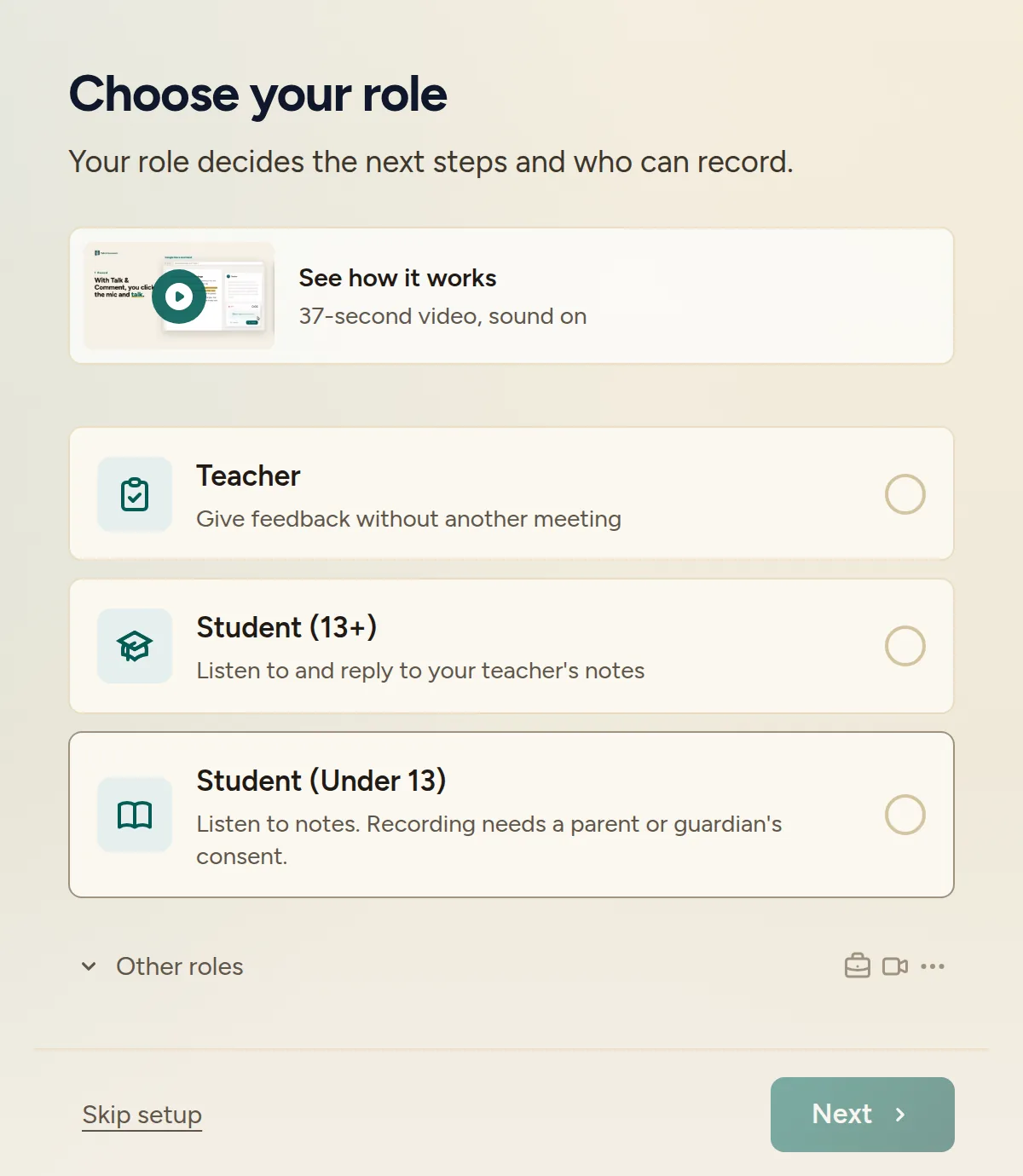
Choose your role in web setup. Follow the setup page that opens after installation. If it does not open, visit web setup and select the role that describes you.
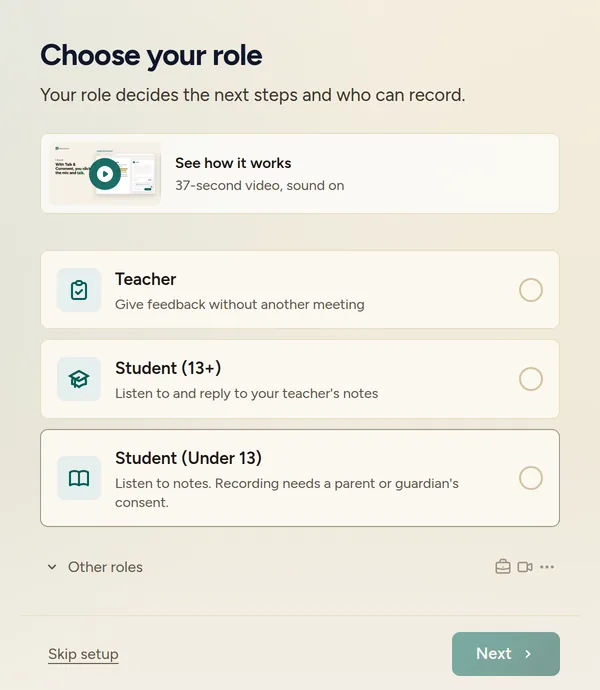
Choose the role that describes you; it determines which setup steps follow. -
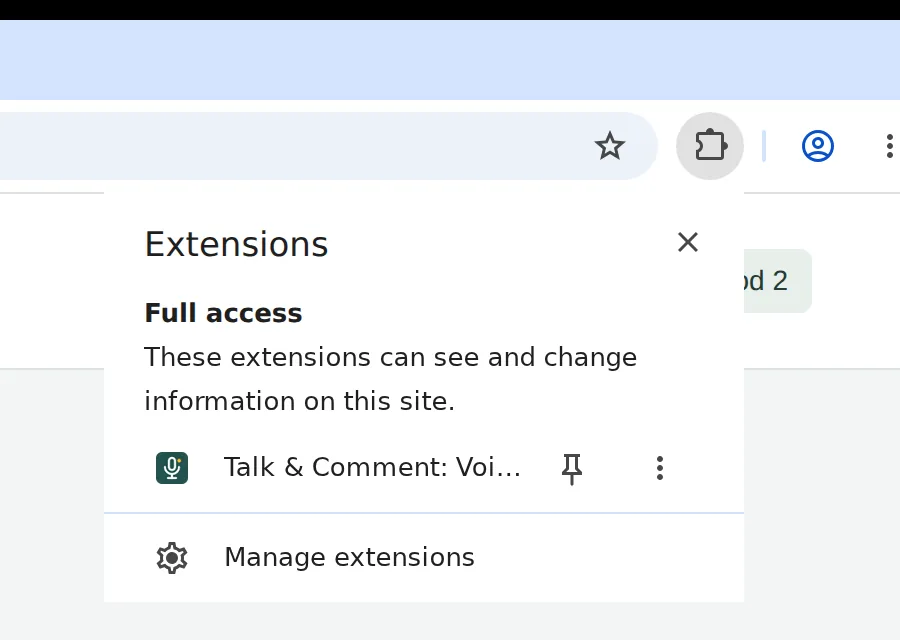
Pin the extension. Open Chrome's puzzle-piece Extensions menu and click the pin beside Talk & Comment. The toolbar icon opens extension controls; the floating mic on the page starts a recording.
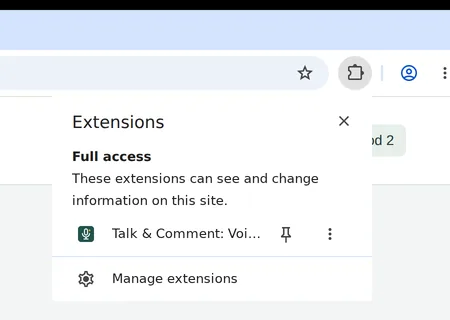
Pin Talk & Comment so you can find its toolbar controls. Allow microphone access. Follow the Microphone step and allow access in Chrome's permission prompt. If Talk & Comment shows Turn on microphone access, click Open permission page and follow the prompt there.
Record and copy your first link
-
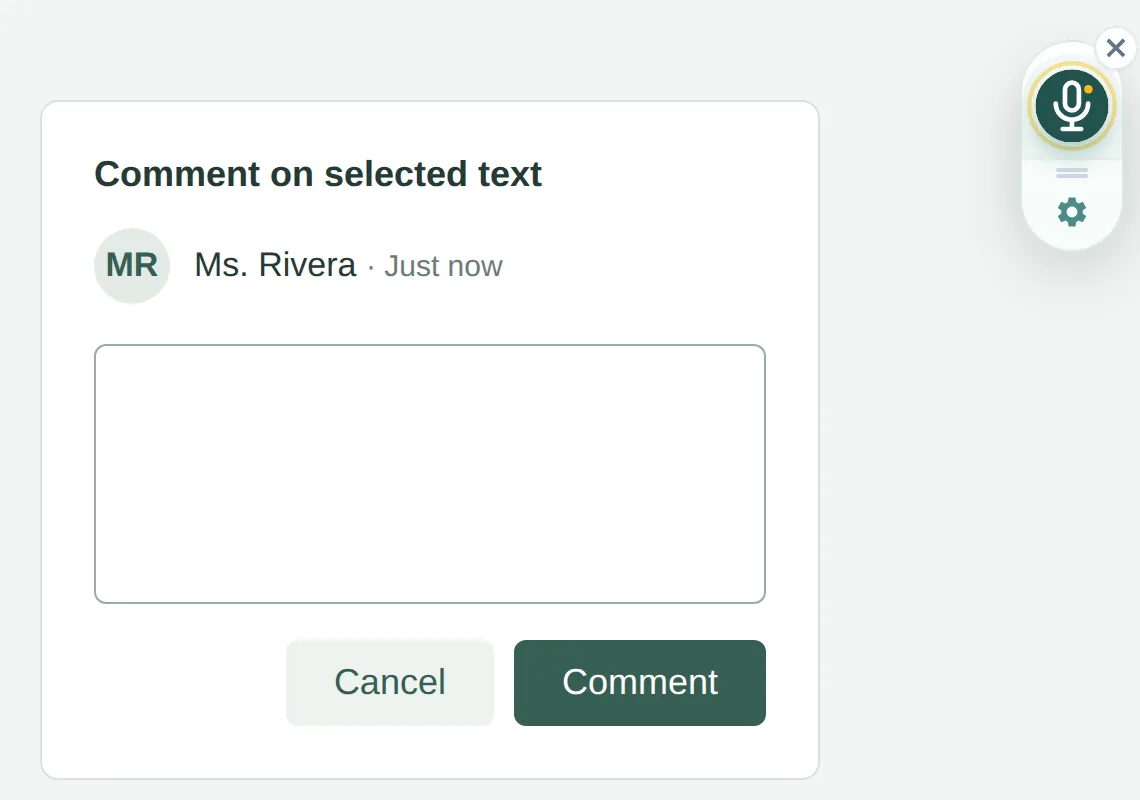
Open a page where the floating mic appears. Use the test page in setup or a page where you are reviewing work. Click the floating Talk & Comment mic and speak.
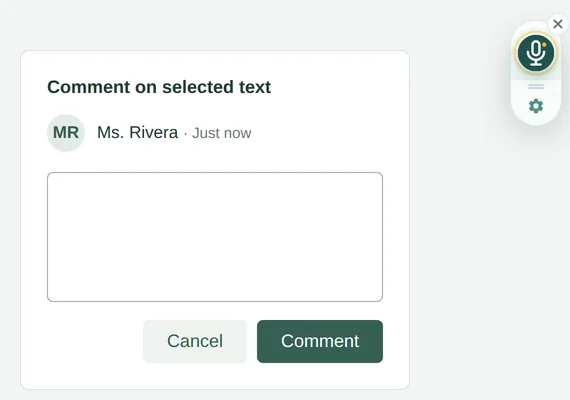
Start from the floating mic on the side of the page, not the toolbar icon. (Example page.) -
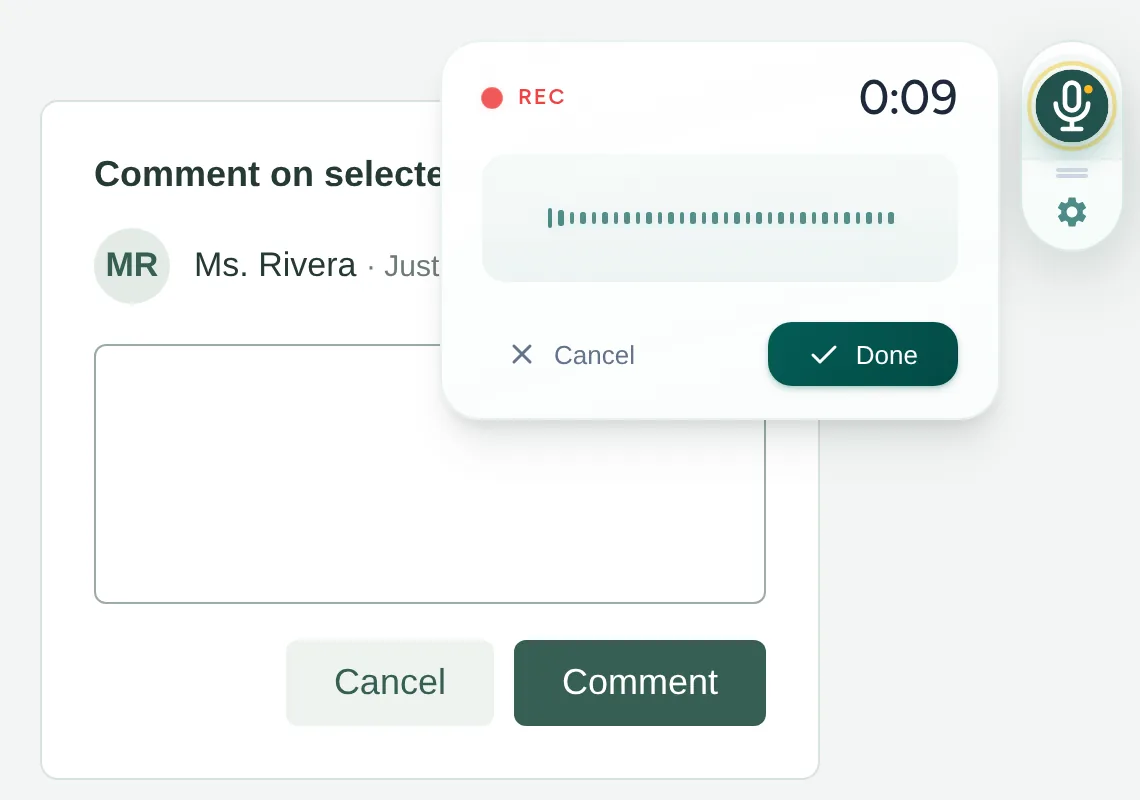
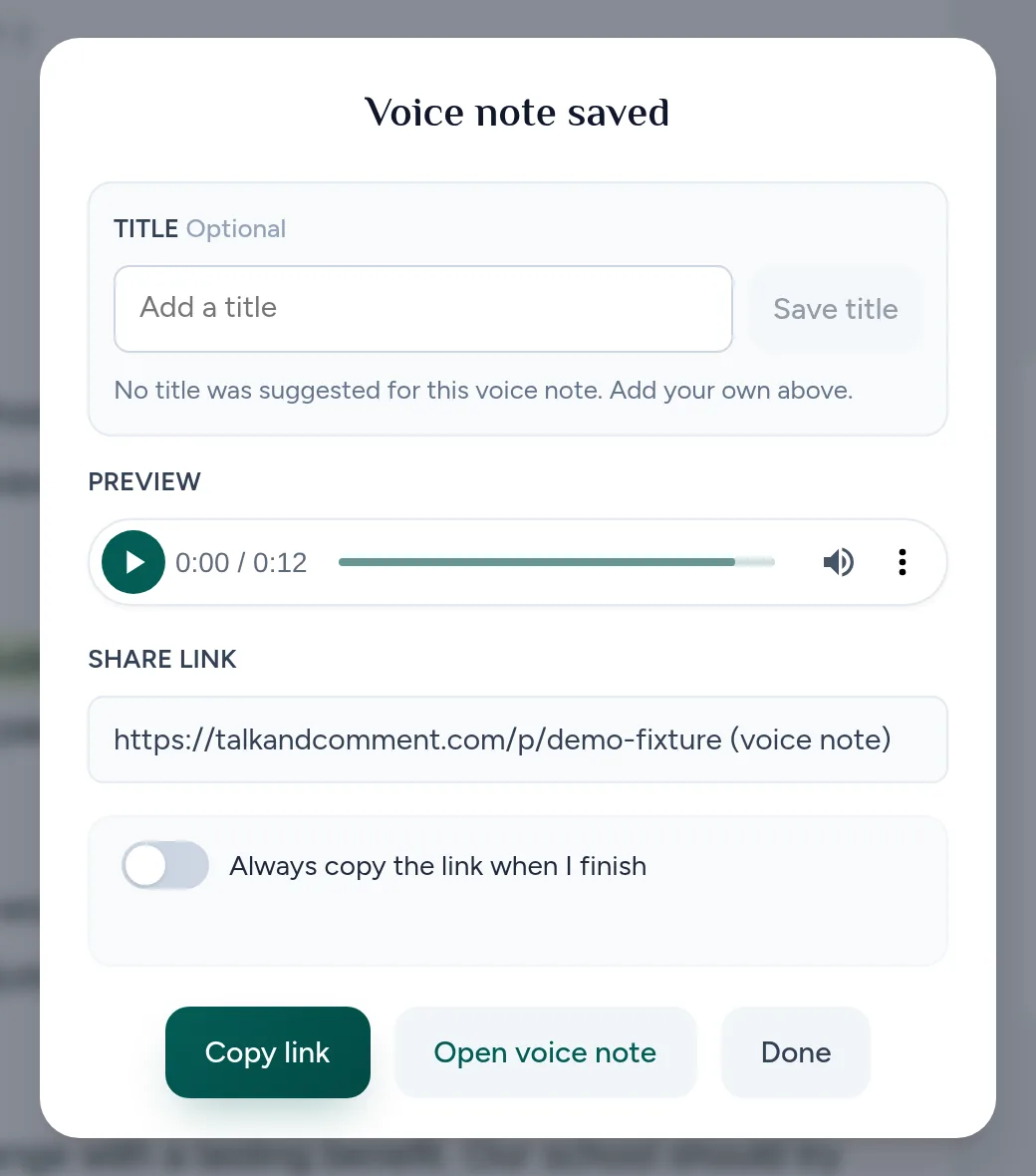
Click Done when you finish. Wait for the Voice note saved card before sharing.
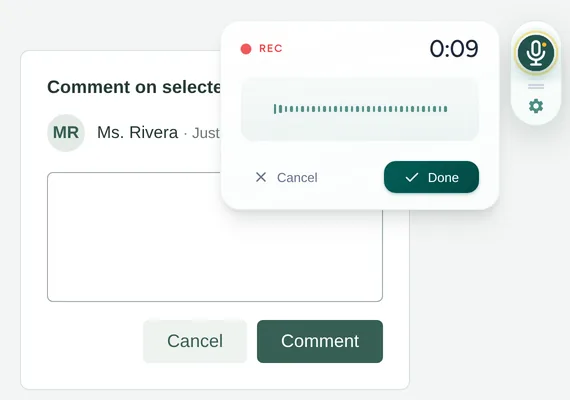
Click Done to finish your recording. (Example page.) -
Click Copy link. Auto-copy is off on a new installation. The saved card also has an Always copy the link when I finish switch if you want future links copied automatically.
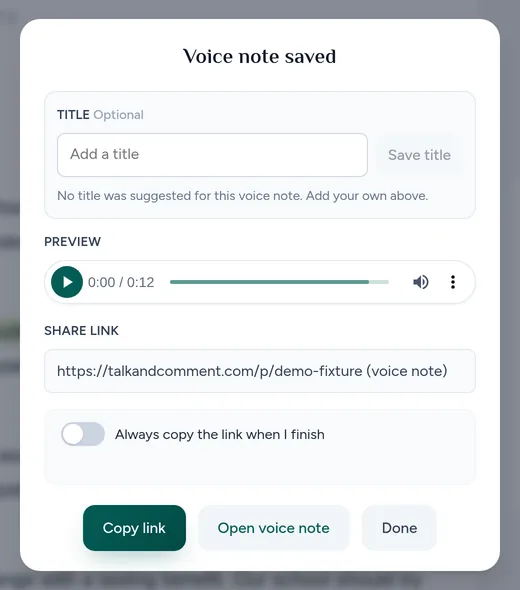
Click Copy link before you paste; automatic copying starts off on new installs. (Example page.) Paste the link where your reader will find it. Use a comment, email, or another field that accepts links. Post or send the message yourself; Talk & Comment does not submit it for you.
Open the shared link and check playback. A reader can listen on the Talk & Comment player page without installing the extension. Public links do not require an account; school-restricted links may require an authorized school account.
Finish setup with your account. When setup reaches Account, sign in with Google to keep your recordings in your account's Library.
If your first note gets stuck
- The mic is missing: use the Chrome checklist.
- Microphone access is blocked: follow Microphone permissions.
- The pasted link stays plain text: open the link to listen. Inline players appear only on supported rendered links, not inside every editor; see Inline player not showing.
Was this article helpful?
Still stuck? Email support and a real person will get back to you.