
For schools and IT
Set up Talk & Comment on school-managed Chromebooks
School IT setup for Talk & Comment: review extension deployment, microphone policies, required domains, and student recording permissions.
Last updated October 16, 2026
Use this checklist for a teacher pilot on managed Chromebooks or managed Chrome browsers. Test installation, recording, and student playback before expanding deployment.
Allow or force-install the extension
The Chrome Web Store extension requires Chrome 109 or later. Use your district's supported, updated Chrome version.
- Extension ID:
djnhkfljnimcpelfndpcjcgngmefaobl - Install source: Talk & Comment in the Chrome Web Store
- Choose a pilot group. Start with a small teacher organizational unit or group in Google Admin.
- Open the extension policy. Go to Devices → Chrome → Apps & extensions → Users & browsers, select the pilot group, and find Talk & Comment.
- Choose the deployment method. Allow installation if teachers will install it themselves. For automatic deployment, set Installation policy to Force install, then click Save or Override as shown for your organizational unit.
Users cannot remove a force-installed extension. See Google's force-install instructions for policy scope and rollout details.
Allow extension access on the learning sites used in the pilot, such as Google Docs, Slides, Classroom, and your LMS. Test each paste location; installing the extension does not guarantee an inline player on every page.
Google account access is a separate policy. If Google blocks Continue with Google, follow school Google sign-in setup.
Check microphone access
Recording needs an available microphone, Chrome permission to capture audio, and the user's microphone grant. Installing the extension does not replace that grant.
Review the AudioCaptureAllowed policy. When it is disabled, Chrome permits audio capture only for exceptions in AudioCaptureAllowedUrls. Keep exceptions scoped to your approved recording workflow; do not disable district protections to troubleshoot.
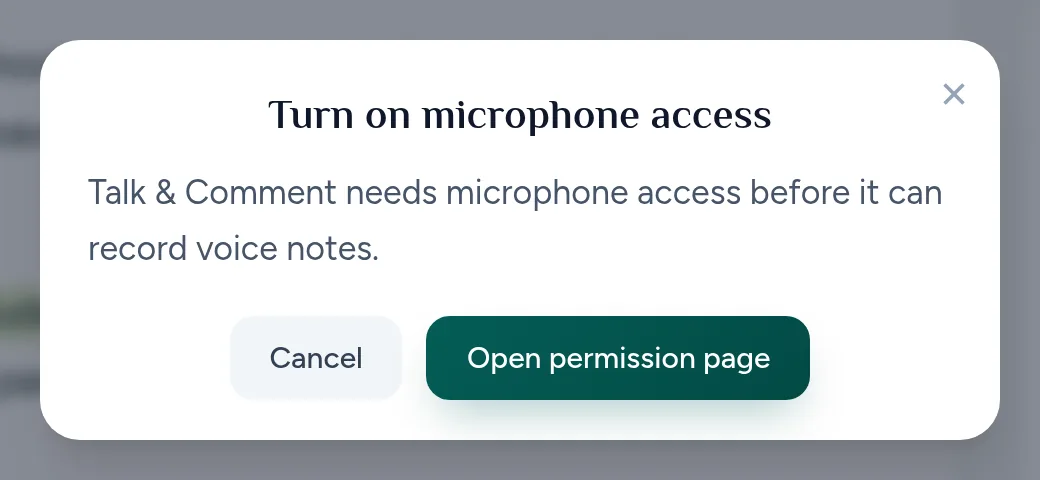
When Talk & Comment shows Turn on microphone access, the teacher clicks Open permission page and follows the browser prompt.
If recording is still blocked, use microphone troubleshooting and Google's audio-capture policy reference.
Review network access by purpose
Check page access and the audio request separately. A player page loading does not establish that the audio host is reachable.
| Purpose | Host or connection to review |
|---|---|
| Website, player pages, and API | HTTPS to talkandcomment.com; preserve www.talkandcomment.com access when links use it. |
| Short-domain player links | HTTPS to tac.im and www.tac.im when your shared links use them. |
| Audio delivery | HTTPS to cdn2.talkandcomment.com. |
| Source audio | The actual S3 bucket hostname returned by a recording's audio request. Some recordings use a bucket-specific s3.amazonaws.com or regional S3 hostname; do not allow all AWS domains. |
| Google sign-in |
accounts.google.com for browser authorization. apis.google.com is also an allowed Google integration source, not a requirement for every player request. |
| Real-time web features | Secure WebSocket access to wss://talkandcomment.com and wss://www.talkandcomment.com. This is separate from audio delivery. |
For DNS-aware filters, cdn2.talkandcomment.com has the CloudFront backing hostname d3txg6pc1x29wk.cloudfront.net. The browser-facing media hostname remains cdn2.talkandcomment.com.
This is not an exhaustive list of every optional request. Error reporting can use configured Sentry ingest hosts, and analytics hosts depend on deployment settings. Do not make analytics access a prerequisite for listening to public notes.
If a source-audio request is blocked, record its exact hostname for your filter review. The current bucket name is not published in this guide. If only the school network fails, compare the same link on another approved network with the same device and account where possible.
Test teacher and student workflows
- Record with a pilot teacher. Confirm microphone capture, successful upload, and playback of the saved note.
- Test the learning site. Paste the link where teachers plan to give feedback. Check inline rendering with the extension enabled, and test the plain link in a browser tab.
- Test as a student. Open the same link on a managed student device and school network. Students do not need the extension for direct-link listening. Public links need no account; when External sharing is off, the listener must sign in as a member of the recording owner's Talk & Comment team.
- Check real assignment copies. If using copied Slides assignments, open a real student copy and test the link rather than assuming Google preserves every comment or paste location.
- Set the support route and expand. Have students ask a teacher, parent, or school admin for help. Expand after the pilot passes on managed devices.
Use the school admin console guide for domain and team policies, and student recording setup before asking students to create notes.
Was this article helpful?
Still stuck? Email support and a real person will get back to you.