
Recording and sharing
Start a Discussion Space and reply with text or voice
Turn a recording into a Discussion Space, share its link, collect text or voice replies, and close or reopen replies when needed.
Last updated October 16, 2026
A Discussion Space adds a reply thread to one of your recordings. Use it when you want people to answer in the same place, rather than send separate recording links back to you.
Create a Space from a recording
- Sign in and open Discussion Spaces. You need a recording you own. If you do not have one, record a voice note first.
-
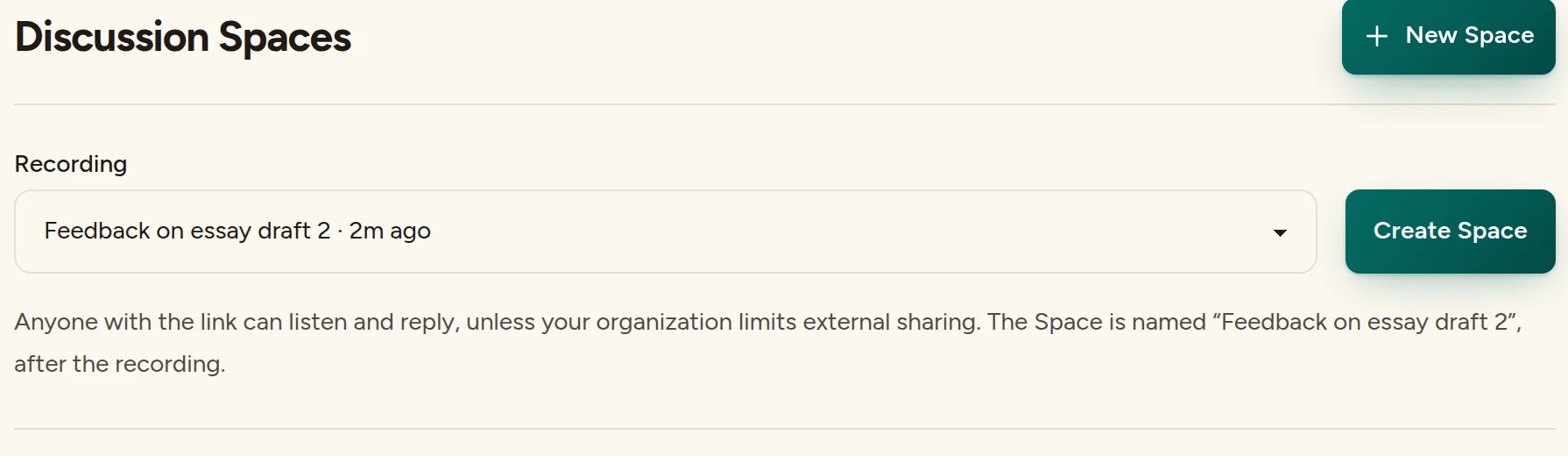
Choose the recording for your Space. If the Recording selector is not visible, click New Space. Choose your note, then click Create Space. The Space uses the recording's title.
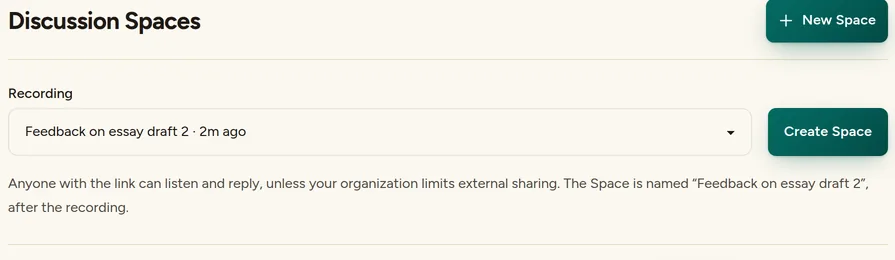
Pick the recording, then Create Space. (Example account.) Click Copy link. Send that link to the people you want to listen and reply. Talk & Comment does not send it to recipients for you.
You do not need TAC Plus to create a basic Discussion Space. The recording's organization sharing policy still applies: when external sharing is off, listeners must be signed-in members of the sender's Talk & Comment team. See sharing permissions.
Post a text reply as a recipient
- Open the Space link. If the page asks you to sign in for organization access, use the account that belongs to the sender's team.
- Confirm your reply name if asked. A guest enters Your name. A signed-in listener sees Public name and can change it in Account. The name appears beside the reply.
- Click Continue to your reply. Enter your text under Write a reply, then click Post reply.
- Check the thread. Your posted reply appears at the end of the thread.
Treat a reply as visible to people who can open the Space, not as a private message only to its creator.
Post a voice reply
- Join the Space before recording. Complete the reply-name step if it appears, then choose Reply with voice instead.
- Use the recorder that opens. On the browser recording page, click Record, allow microphone access if asked, then click Stop & Upload when finished. If the extension starts its floating recorder instead, finish with Done, then click Post this reply when the page asks you to confirm.
- Check that the reply was posted. On the browser recording page, wait for Reply posted, then click Return to thread. An audio upload alone does not confirm that the reply reached the thread.
If you see Recording saved, reply not posted, read the error and use Retry attachment after addressing it. If your participant session expired, return to the Space and rejoin before retrying the saved recording. If the sender has closed replies, no new reply can be posted.
For student recording permissions, read student voice note setup. Browser microphone support and your school's recording policy still apply to voice replies.
Read and manage replies as the creator
- Open your Space in Discussion Spaces. Read the text replies or play the available voice replies.
-
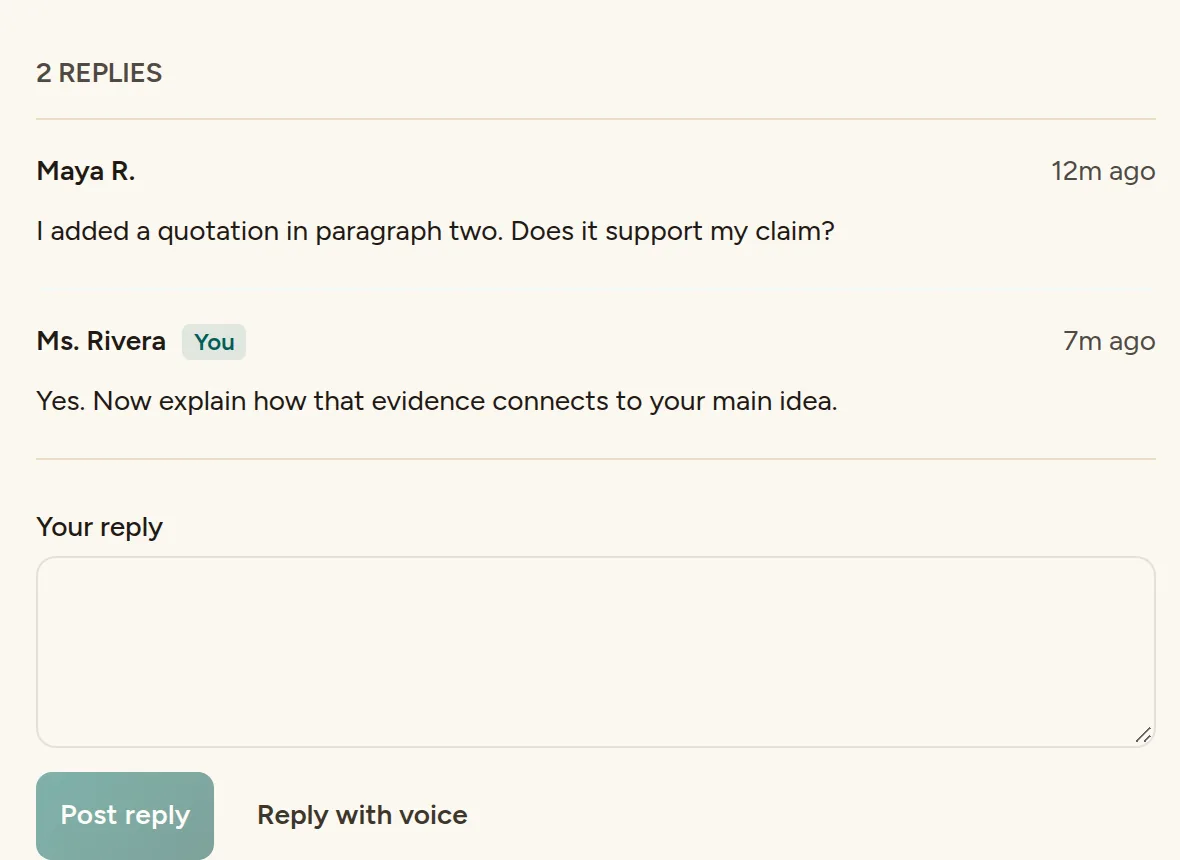
Add your answer. Write in Your reply and click Post reply, or choose Reply with voice.
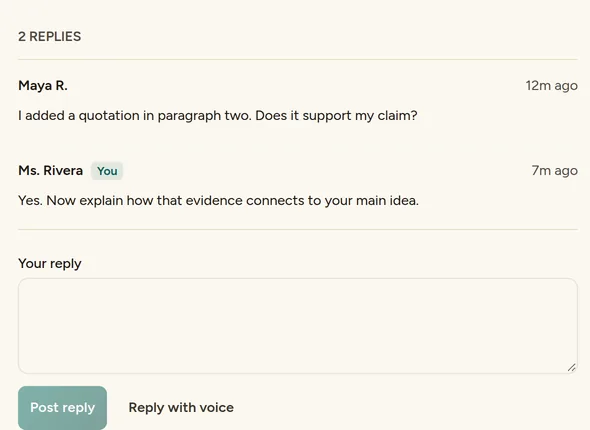
Replies appear in order under the recording; yours is marked You. (Example account.) Click Close replies when you want to stop new replies. Existing replies remain readable and the note remains available to authorized listeners.
Click Reopen replies to accept answers again.
Replying when there is no thread
If a shared note offers Reply with your voice but no reply thread, record your own note and send its link to the sender yourself. Recording it does not automatically deliver a reply to that person. The owner can start a Space when they want replies collected in a thread.
Was this article helpful?
Still stuck? Email support and a real person will get back to you.