
Recording and sharing
Find, organize, rename, and delete your recordings
Find voice notes in your Library, search loaded recordings, organize collections, edit titles, copy links, download audio, or delete a note.
Last updated October 16, 2026
Use your Library to manage recordings owned by your account. Open your Library and sign in with the account you used to save the notes.
Find a recording
-
Search your loaded recordings. Use Search to look for a title, transcript text, collection, or source page.
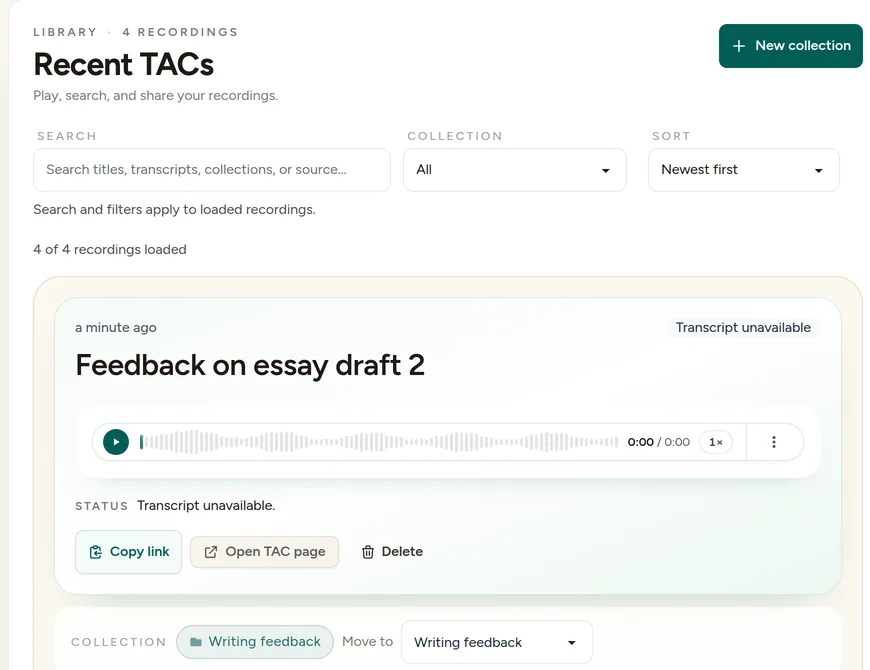
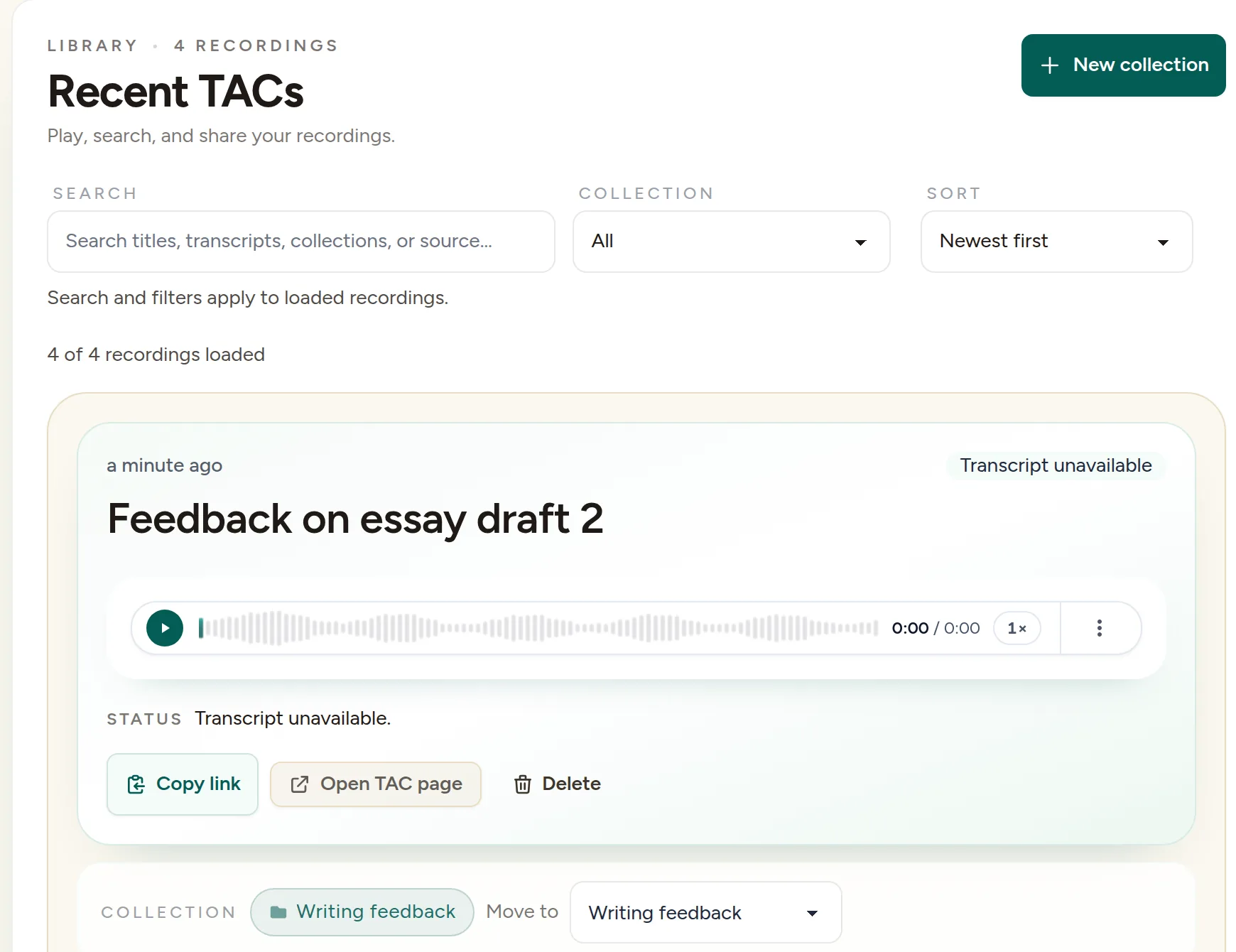
The Library shows how many recordings are loaded; search and filters apply to those. (Example account.) Check the Collection filter. Choose All when available to include named collections, or Unsorted for recordings that are not in a named collection.
Change Sort if needed. Choose Newest first or Oldest first.
Load more before ruling a note out. Search and filters apply to loaded recordings. Click Load more recordings if more notes remain in your Library.
If a recent recording never finished uploading, it is not the same as a saved Library note. Use Recover an unsaved recording before removing the extension or clearing browser storage.
Organize notes into collections
- Click New collection. Enter a Collection name, such as a subject or assignment, then click Create.
- Move a recording. On its card, use the Move to selector in the Collection section and choose the collection.
- Return a note to Unsorted if needed. Choose Unsorted in that same selector.
Free accounts can have 3 collections, TAC Plus 10, and TAC Pro or active School & District team seats have no collection cap.
To remove a collection, select it in the Library's Collection filter, click Delete collection, and confirm Delete. Its recordings move to Unsorted; this does not delete the audio.
Rename a recording
- Click the pencil beside the title. Its label is Edit title.
- Type your title. Use a name that helps you recognize the assignment or topic.
- Click the checkmark to save. Its label is Save title. Changing the title keeps the existing sharing link.
Writing your own title does not require an AI title suggestion. If a suggestion is available, Use suggested title accepts it and Dismiss suggestion removes the suggestion.
Copy a link or open the player page
- Click Copy link on the recording's card. Paste it into the message or feedback where you want to share it.
- Click Open TAC page to open its player page. Check playback there if you want to test the link before sending it.
If copying fails, the card shows a Recording link field. Select and copy that link manually, or try Copy link again.
Download a copy of your audio
- Find the player on your recording's card. Open its More options menu.
- Choose Download. This owner-only menu action opens the audio source in a new tab. Use your browser's save controls if it plays instead of downloading.
- Keep the file somewhere appropriate for its contents. Check Recording limits and retention before relying on Talk & Comment as your only copy.
Delete a recording
-
Click Delete on the recording's card. Read the Confirm delete dialog.
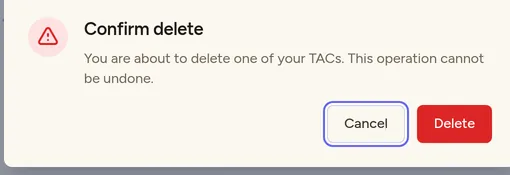
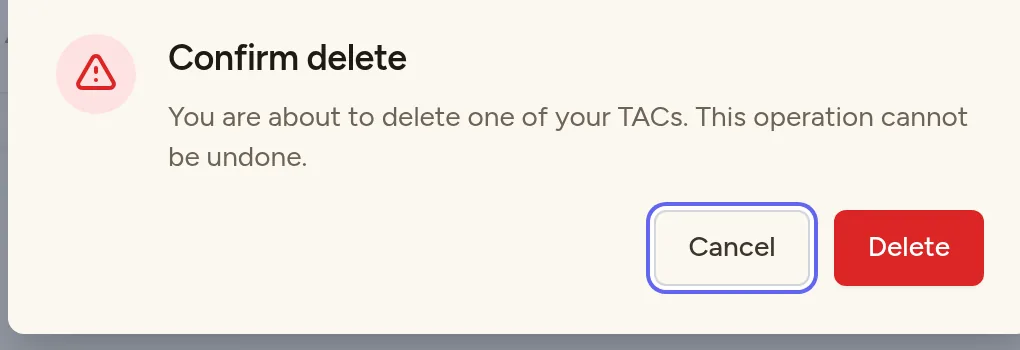
Cancel keeps the recording. Delete removes it for good. Confirm only if you want to remove the recording permanently. Use Delete collection instead if you only want to remove a collection and keep its recordings.
Was this article helpful?
Still stuck? Email support and a real person will get back to you.