
Recording and sharing
Create transcripts, read along, and translate voice notes
Create and review a transcript, let families translate its text, or read along with a shared Talk & Comment voice note.
Last updated October 16, 2026
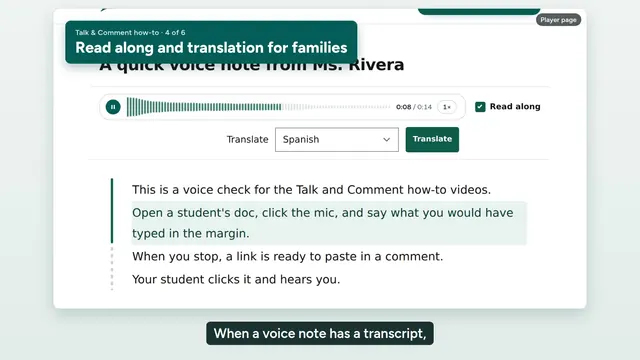
Video transcript
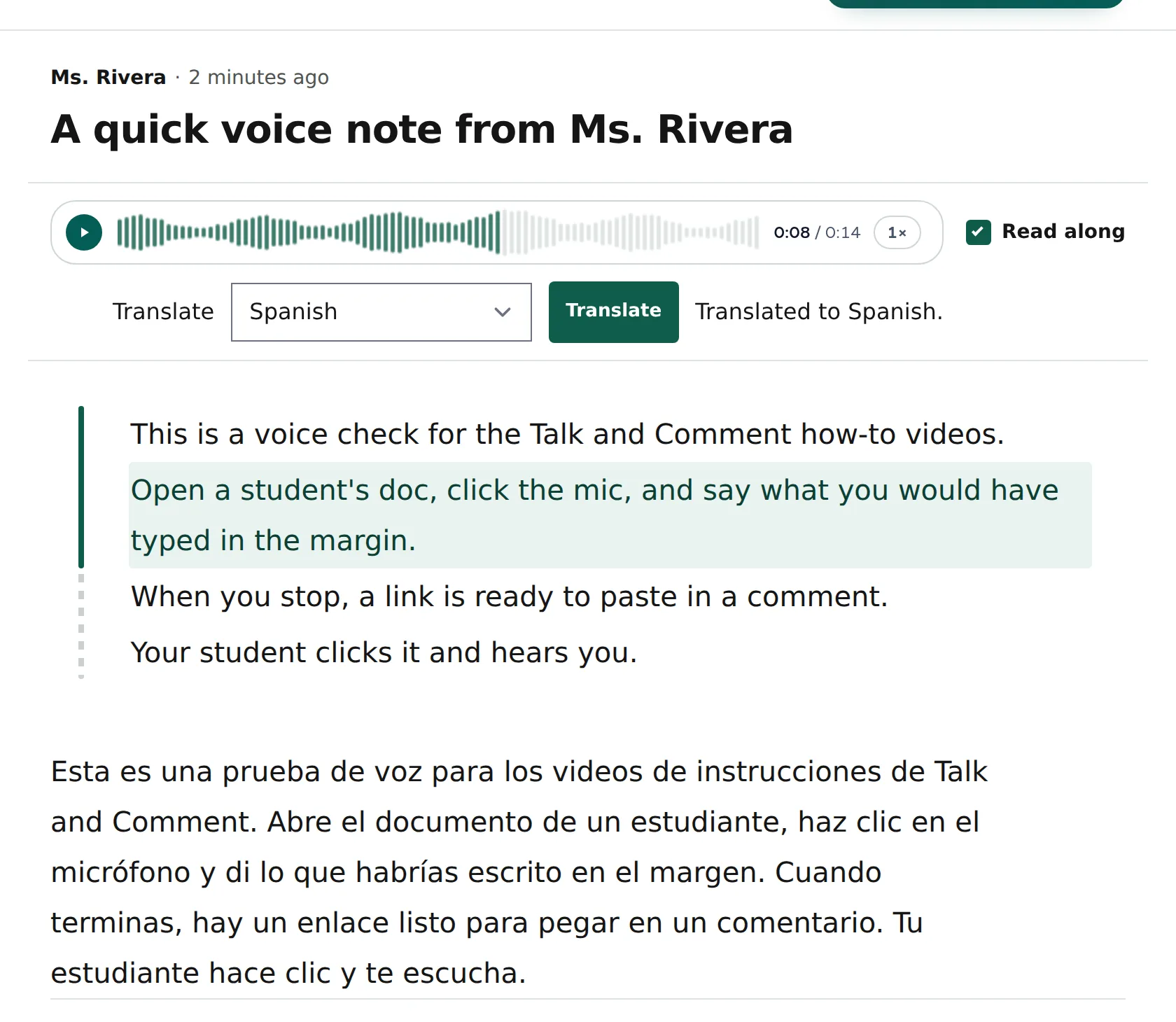
When a voice note has a transcript, listeners can read along, and families can read it in their own language. Transcripts and translation come with Teacher Plus, Teacher Pro, and the School & District plan. They are not part of the free plan. To get a transcript on every new note, open your Talk & Comment settings and turn on Auto-transcribe new voice notes. After you record, you can review the transcript before you share the link. When someone opens your link, the transcript sits under the player. With Read along on, the text follows the audio as it plays. Translation is off until you turn it on. In settings, switch on Let viewers translate my notes. Now a parent can open the same link, pick a language under Translate, and click Translate. 20 languages are available, including Spanish, Arabic, Chinese, and Vietnamese. Your voice stays the same. Only the transcript text is translated.
Teachers can create and correct transcripts before sharing. Students and families can read a visible transcript or translate it when the author allows translation.
Teachers: create a transcript
Transcript generation is included with TAC Plus, TAC Pro, and eligible School & District seats. Your school's AI permissions still apply. Free does not include transcript generation.
-
Open Settings. Turn on Auto-transcribe new voice notes to queue a transcript after each new upload. This setting does not transcribe older notes.
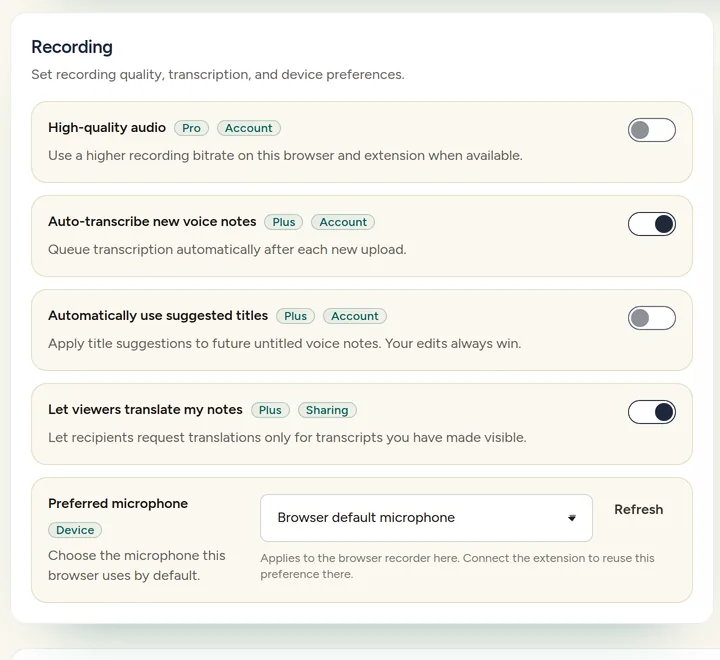
Auto-transcribe new voice notes applies to future uploads. Viewer translation is a separate switch. Record and save your note. Check the transcript review area on the extension's saved card when a transcript is available. For an older note, open Library and choose Transcribe from the player's menu when offered.
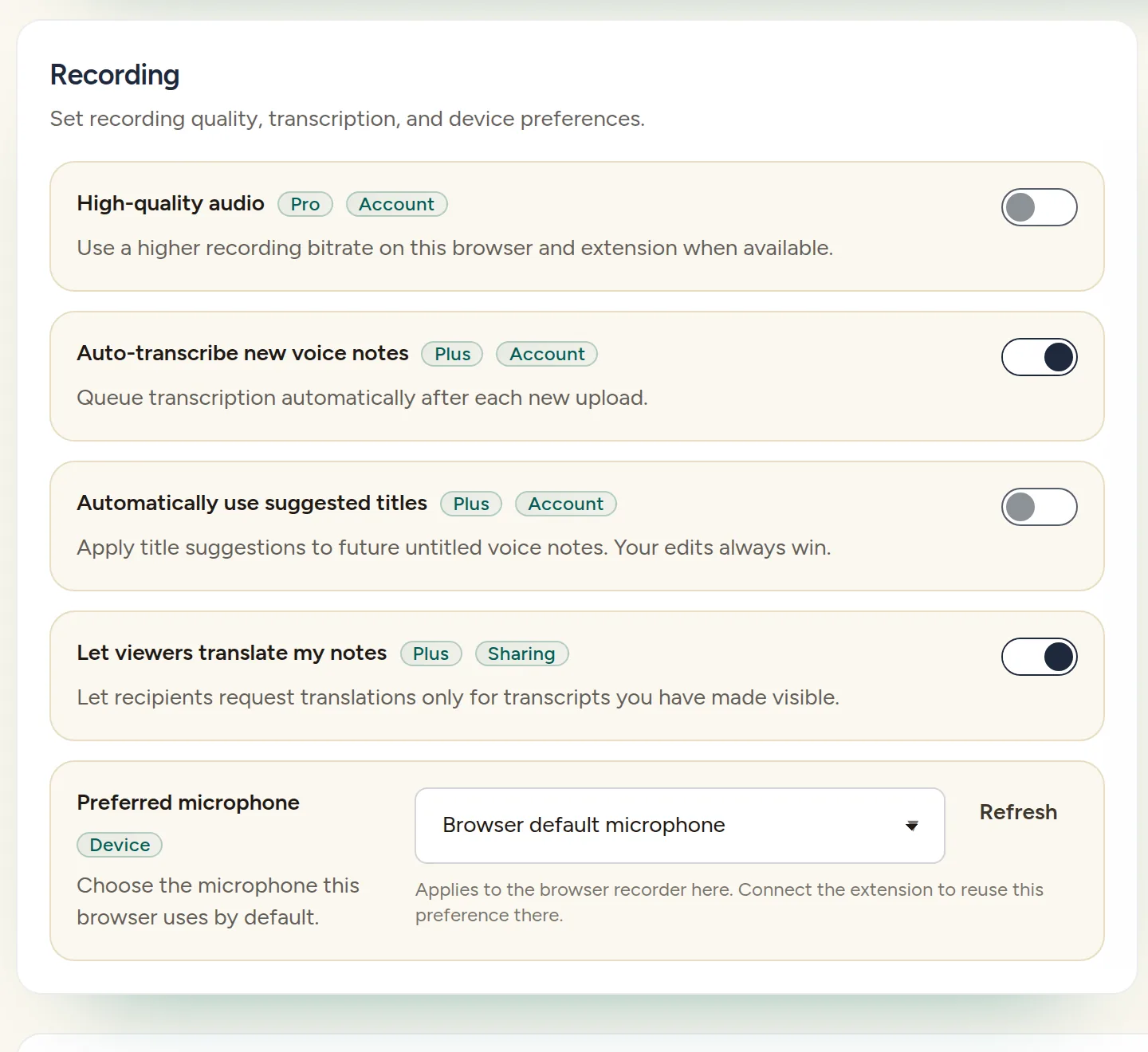
Personal accounts start with automatic transcription off unless you have saved a different choice. Team members without a saved choice follow the team's AI transcription setting.
Teachers: review before sharing
- Read the transcript. In the extension review area, correct the text before approving it. If it is already approved, select Edit first.
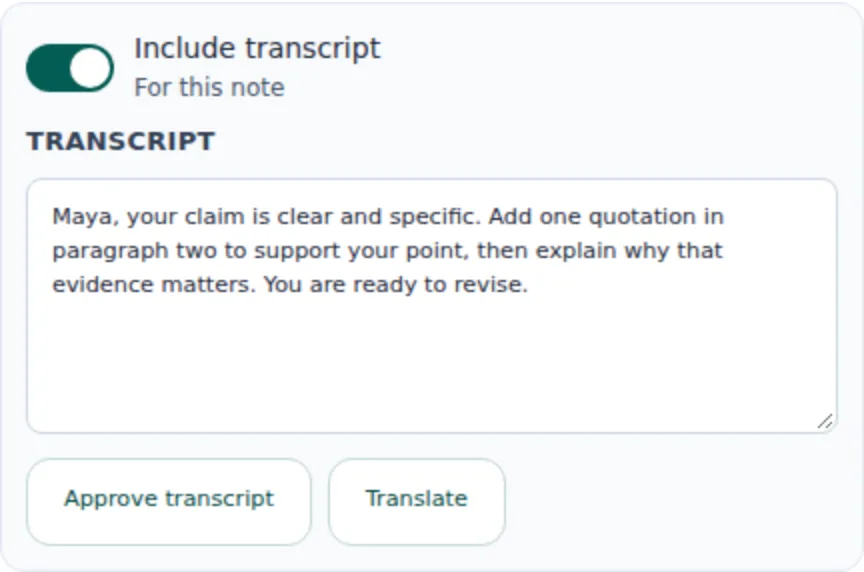
- Choose whether to include the text. Include transcript, marked For this note, controls attachment for this recording. Turn it off if you want to share the audio without the transcript.
-
Select Approve transcript when offered. Then share the note's link. Approval concerns the transcript, not approval of a student's work.
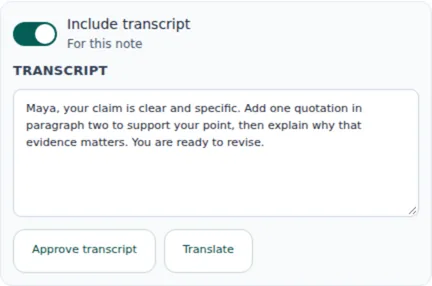
Check the text and Include transcript before sharing. Approve transcript confirms your review. (Example account.)
Teachers: correct text or the detected language
- Open your recording in Library. Open Transcript or the transcript review area, choose Edit transcript, make your corrections, and select Save transcript.
- Retranscribe if the spoken language was detected incorrectly. Open Details, choose Wrong language? or Set language, select the language you spoke, and choose Retranscribe. This creates a new transcript from the audio; it is not translation into another language.
Transcript queued means the transcript is waiting. If you see Transcript failed, read the status message and use Try again when offered. A plan or school-policy restriction needs to be resolved before transcription can run.
Teachers: allow families to translate
- Open Settings. Turn on Let viewers translate my notes. It starts off and applies only to transcripts you have made visible.
- Share the voice-note link. Authorized listeners can request a text translation when your plan and school AI permissions allow it. You can also choose Translate in Library for your own notes; Translate in the extension review area opens Library.
For provider and school-control details, read how Talk & Comment processes AI features.
Students and families: read along or translate
You do not need a paid plan to read an author's shared transcript or use the translation they allow. You still need access to the note; school-restricted links may require a school sign-in.
- Open the voice-note link. When a visible transcript is available, it appears below the player.
-
Play the note with Read along on. The transcript follows the original audio as it plays. Use Resume follow if it appears and you want the text to follow playback again.
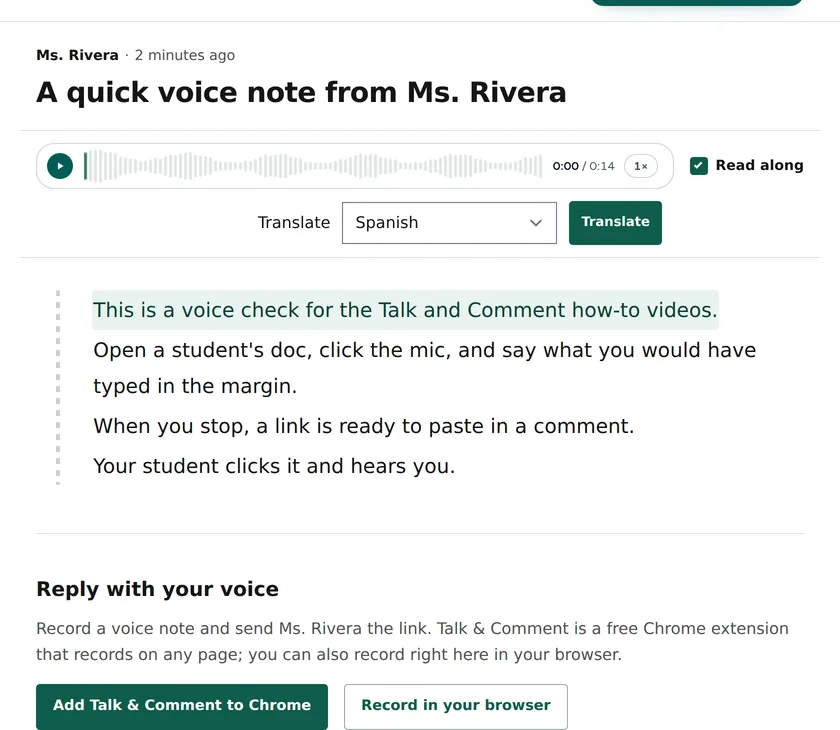
Read along follows the audio. Translate appears only when the author allows it. -
Translate the text if the control is available. Choose a language under Translate, then select Translate.
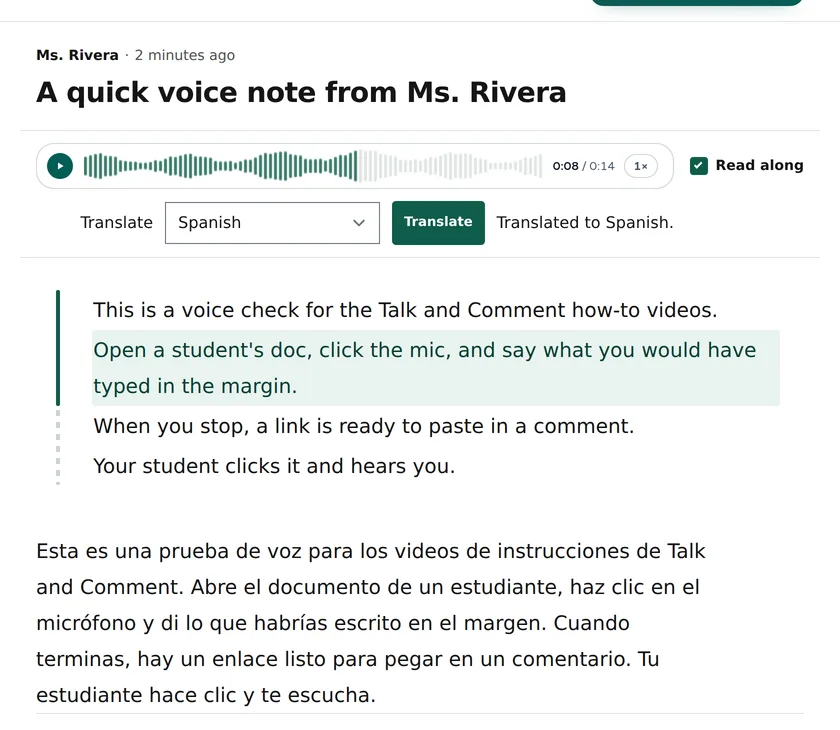
The translation appears as text. The recording keeps the author's original voice.
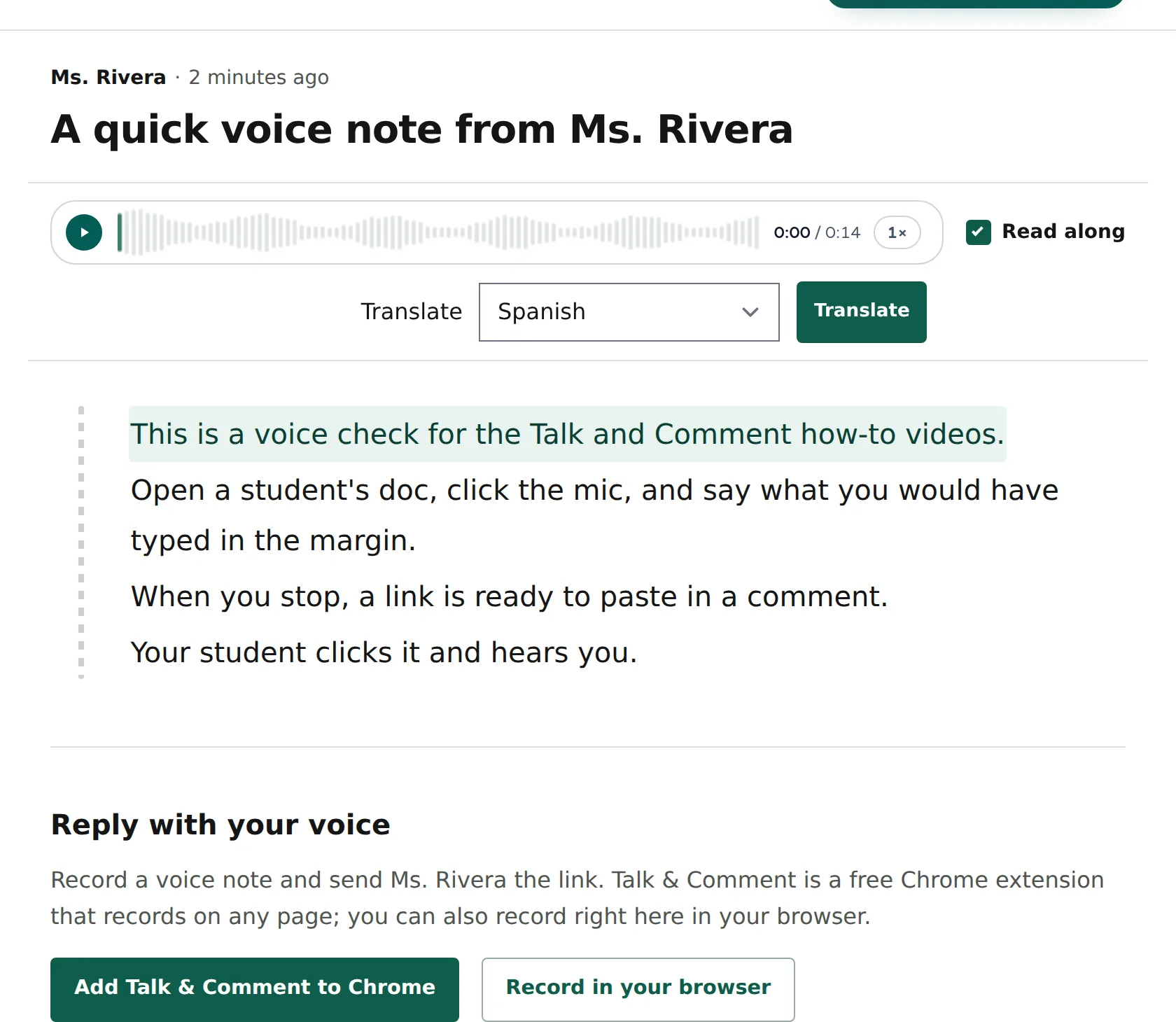
If you see no transcript or translation control, ask the teacher or author to check the transcript and sharing settings. These features do not read arbitrary text aloud or create translated or dubbed audio.
For access problems, see who can listen to a voice note. To find your own notes, use the recordings Library guide.
Was this article helpful?
Still stuck? Email support and a real person will get back to you.