
Getting started
Record in your browser without the Chrome extension
Record a voice note in a compatible browser, including on a phone or tablet, then sign in to upload it and share a link.
Last updated October 16, 2026
You can record on the Talk & Comment website without installing the Chrome extension. On a phone or tablet, use the browser recorder rather than the desktop extension.
Open the browser recorder
- Open browser setup. Go to the sign-in page and choose record in your browser. This opens setup at Choose your role.
-
Choose your role. Continue through the setup steps shown for you. Without the extension, setup skips the extension's Toolbar and Microphone steps; the browser asks for microphone access when you record.
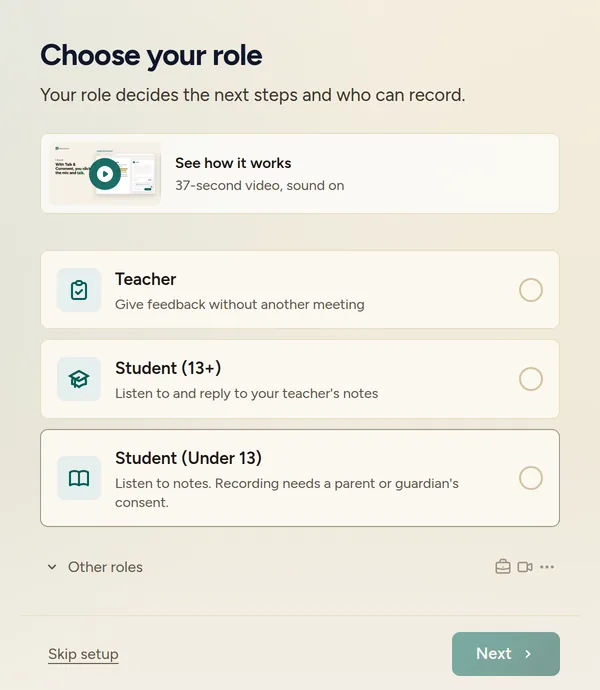
Choose your actual role; student and viewing-only restrictions still apply. -
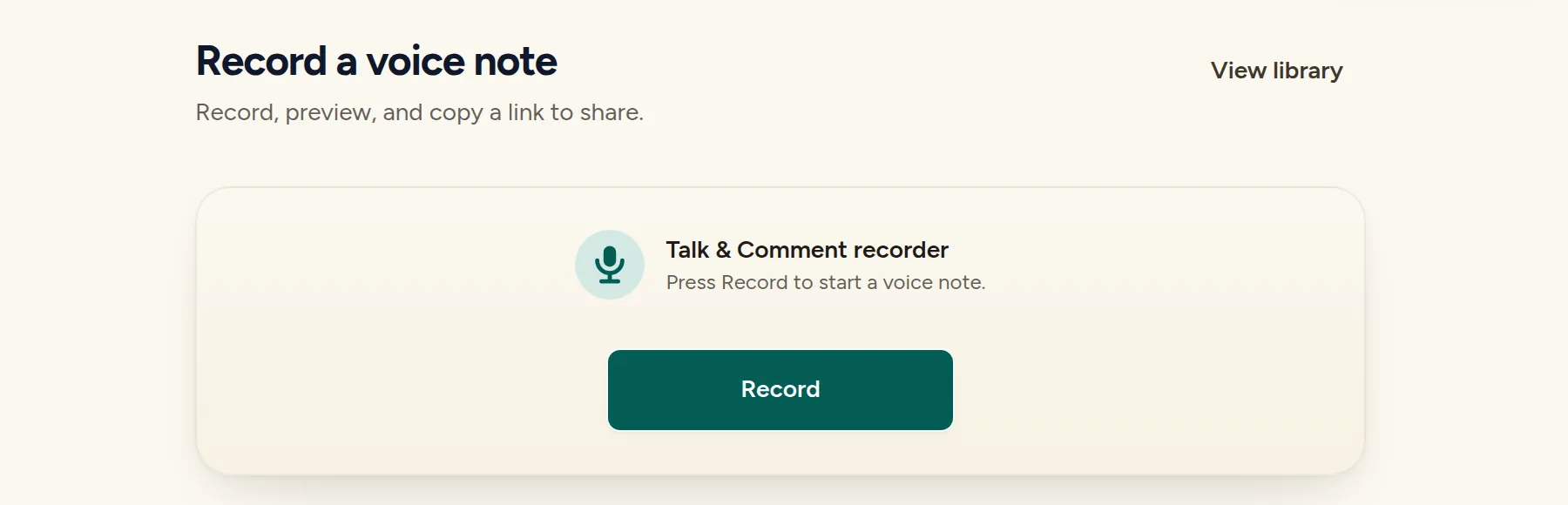
Click Record. Allow microphone access when your browser asks, then speak. The setup and standalone web recorder have a 60-second recording limit.
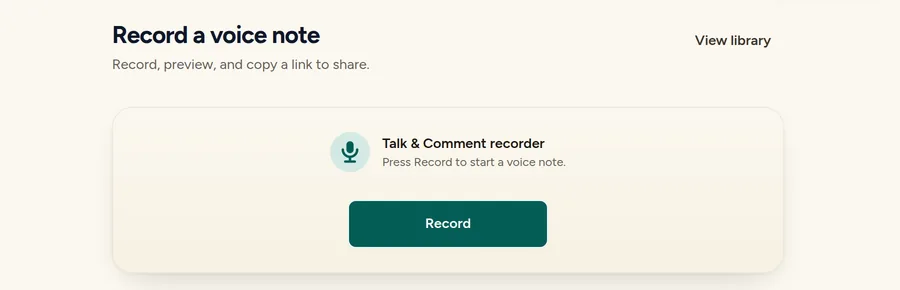
The web recorder, shown here at talkandcomment.com/app/record. (Example account.) -
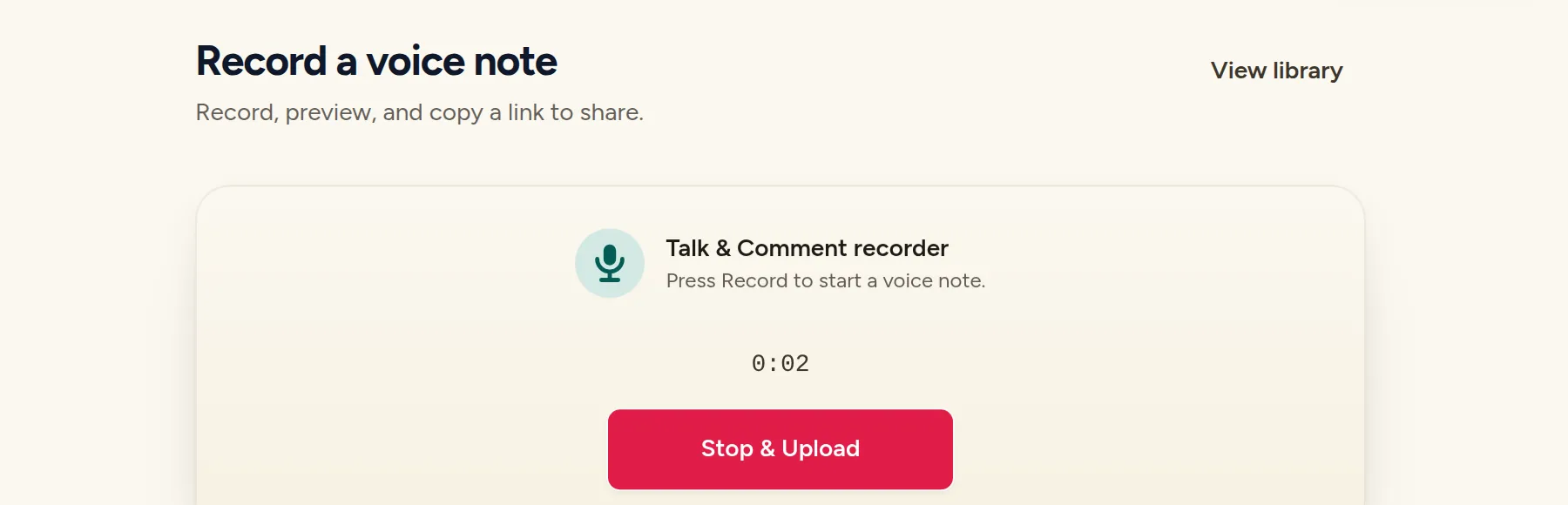
Click Stop & Upload. If you are not signed in, this creates a local preview first, not a shareable link. Follow the account step to sign in; upload requires a saved role that allows recording.
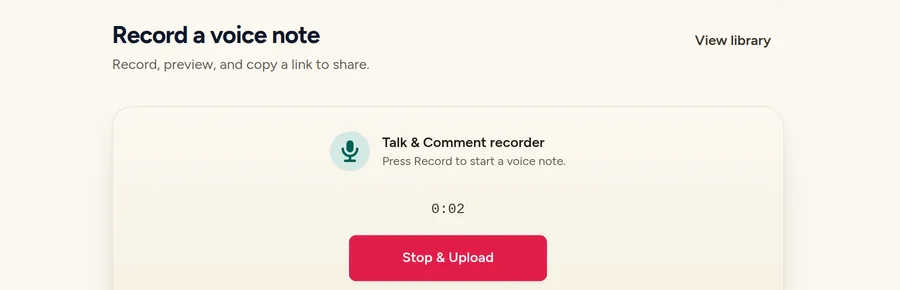
While you record, the timer runs and Stop & Upload ends the recording. (Example account.)
Find and share the uploaded note
- Wait for upload to finish. If you made a guest recording, look for Your recording is uploaded. and Open voice note after sign-in.
- Open your Library. Visit your Library with the account you used to upload the note. Find the recording and click Copy link.
- Paste the link into your message or feedback. Send or post it in the destination tool. Recipients do not need the extension to listen, though school sharing rules can require an authorized team account.
To make another short note after setup, open the web recorder while signed in. For organizing and finding earlier notes, use the Library guide.
Use a phone or tablet
The browser must support microphone capture and audio recording, and you must allow microphone access. A link opening successfully does not prove that the same browser can record audio.
If you opened Talk & Comment inside an LMS or messaging app and recording is unavailable, try opening the page in your device's browser. Embedded browsers may not support microphone capture. This is a browser workflow, not an instruction to install the desktop Chrome extension on your phone.
If recording or upload is blocked
- Microphone access: check the browser's permission for talkandcomment.com and your device's microphone settings. See Microphone permissions.
- School or role restrictions: a viewing-only role cannot upload recordings, and a school can turn student recording off. See Student recording setup; a different recorder does not bypass these restrictions.
- Monthly allowance: browser uploads use your account's recording allowance. See Recording limits and retention for plan counts and the separate Library recorder length limit.
- A kept guest recording fails to upload: use Try again, or Download recording if offered, before closing the tab. Follow Recover an unsaved recording for the limits of recovery.
Was this article helpful?
Still stuck? Email support and a real person will get back to you.